
-
- Digital Marketing
-
 Perf. Marketing
 E-mail Marketing
 PPC Services
 Video Marketing
 Influencer Marketing
- Social Media
 Facebook Marketing
 Instagram Marketing
 Twitter Marketing
 Pinterest Marketing
 TikTok Marketing


-
- Digital Marketing
-
Perf. Marketing
- E-mail Marketing
- PPC Services
- Video Marketing
- Influencer Marketing
- Social Media
- Facebook Marketing
- Instagram Marketing
- Twitter Marketing
- Pinterest Marketing
- TikTok Marketing
Blog
Image Sitemap: What It Is and How to Create One
.webp)
Want a Quick Summary?
Summarize this article instantly with ChatGPT.
Visual assets play an essential role in driving user engagement, building brand recognition, and generating high-converting organic traffic through Google Images. However, search engine crawlers do not process graphics and visual assets the same way human eyes do. When images are loaded dynamically via JavaScript, embedded inside CSS background rules, or buried behind content delivery networks (CDNs), search engine bots can easily miss them during standard crawls.
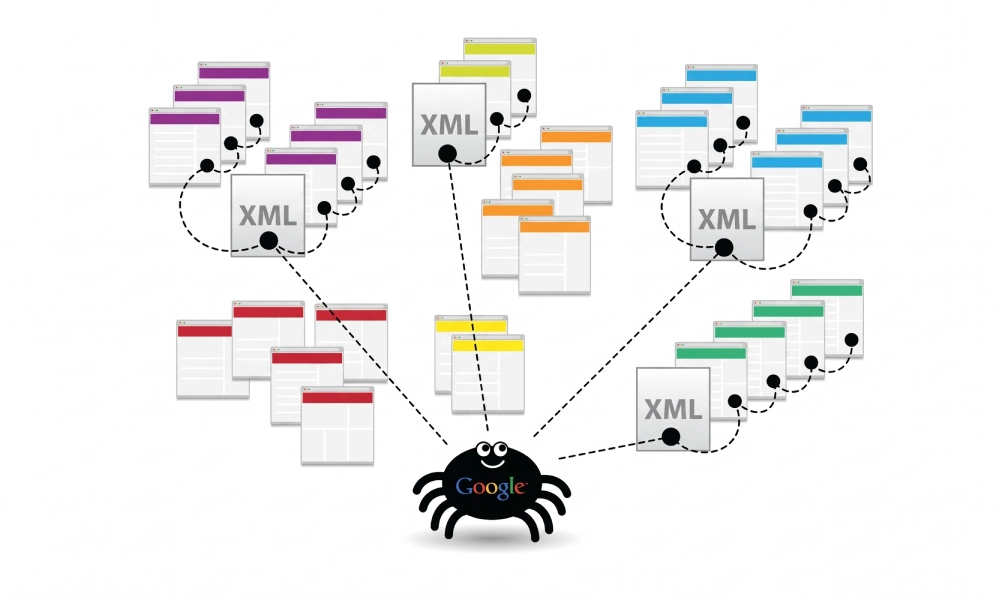
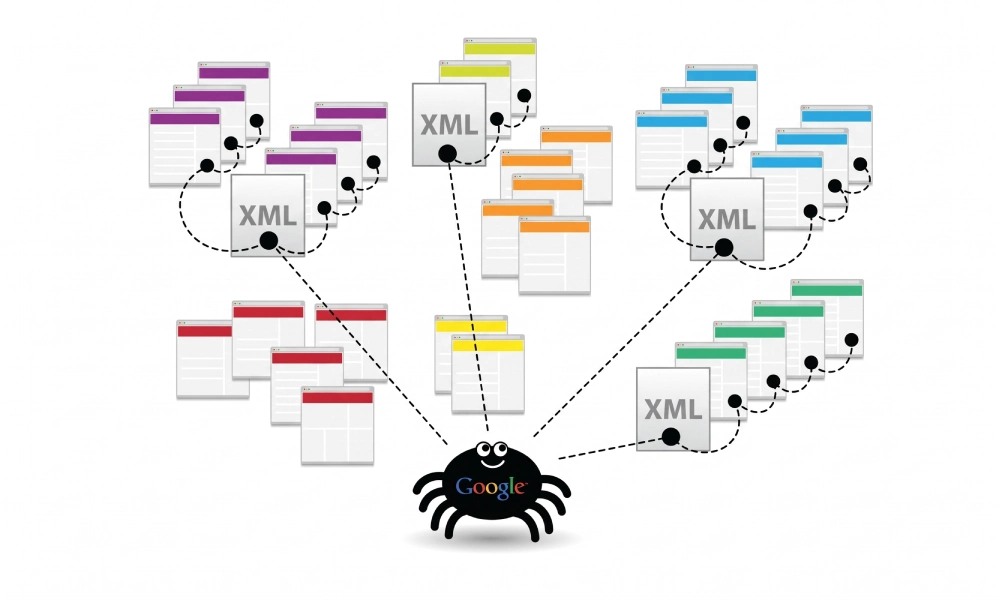
An image sitemap bridges this gap by feeding structured visual metadata directly to search engine crawlers. Learning what an image sitemap is and how to build one correctly ensures your products, technical infographics, and visual media are discovered, understood, and indexed for high-intent image search queries.
What Is an Image Sitemap?
An image sitemap is an XML document based on the standard Sitemaps.org protocol that incorporates Google's specialized image extension namespace (xmlns:image="http://www.google.com/schemas/sitemap-image/1.1"). It lists the canonical URLs of your web pages alongside the exact image file paths hosted on or embedded within those pages.
Rather than requiring a completely separate file, image metadata is typically embedded directly inside your existing standard XML sitemap. For each web page URL, you can attach up to 1,000 images, supplying Googlebot with structured information about the image file location, title, and descriptive caption.
Why Image Sitemaps Matter for Technical SEO
While search engines crawl HTML pages looking for standard <img> tags, dedicated image sitemaps provide distinct technical advantages:
- Indexing JavaScript-Injected Images: Modern web frameworks (such as React, Vue, or Next.js) often load product galleries, sliders, or lazy-loaded images dynamically via client-side scripts. An image sitemap ensures Googlebot discovers these assets without waiting for JavaScript execution resources.
- Cross-Domain and CDN Discovery: Many enterprises host visual media on dedicated content delivery networks or subdomains (such as
cdn.yourdomain.comor third-party cloud buckets). Image sitemaps verify the association between the parent webpage and the externally hosted asset. - Contextual Relevance in Google Images: Supplying explicit title and caption tags allows search engines to understand the exact subject matter of an image, matching it accurately with transactional search queries.
- Support for Image Licensing and Badges: Structured image feeds help search engines display specialized badges (such as "Product" or "Licensable") directly within Google Images results.
XML Schema and Tags for Image Sitemaps
An image sitemap extends the standard XML protocol by introducing image-specific child elements under the primary <url> container tag. Here is a complete, protocol-compliant example:
<?xml version="1.0" encoding="UTF-8"?>
<urlset xmlns="http://www.sitemaps.org/schemas/sitemap/0.9"
        xmlns:image="http://www.google.com/schemas/sitemap-image/1.1">
  <url>
    <loc>https://www.yourdomain.com/products/running-shoes/</loc>
    <image:image>
      <image:loc>https://www.yourdomain.com/images/mens-running-shoe.jpg</image:loc>
      <image:title>Men Lightweight Running Shoe in Blue</image:title>
      <image:caption>Breathable mesh running shoe designed for marathon distance</image:caption>
    </image:image>
    <image:image>
      <image:loc>https://www.yourdomain.com/images/running-shoe-sole-grip.jpg</image:loc>
      <image:title>Rubber Tread Grip Pattern</image:title>
      <image:caption>Reinforced traction outsole engineered for wet pavement</image:caption>
    </image:image>
  </url>
</urlset>
Understanding the Specific Image Tags
The image sitemap extension supports specialized tags designed to describe media assets:
| XML Tag | Requirement Level | Accepted Values / Format | Technical Function |
|---|---|---|---|
<image:image> |
Mandatory per asset | Parent container element | Encloses all metadata for an individual image file. |
<image:loc> |
Mandatory per asset | Absolute URL (e.g., https://...) |
The exact direct location of the image file on your server or CDN. |
<image:title> |
Optional | Text string | The official title of the image; often displayed in Google Images previews. |
<image:caption> |
Optional | Text string | A descriptive summary detailing what the image portrays. |
<image:geo_location> |
Deprecated / Optional | City, Country format | Historically used to supply geographic origin of photos. |
<image:license> |
Optional | Absolute URL to license page | Points to a copyright or creative commons license agreement for the image. |
Step-by-Step Guide: How to Create an Image Sitemap
Follow this technical workflow to generate and deploy a valid image sitemap for your website:
Step 1: Audit and Filter Your Visual Assets
Not every graphic on your server belongs in an image sitemap. Submitting minor interface elements wastes crawl resources. Curate your image inventory using these standards:
- Include: High-resolution product photographs, technical architectural diagrams, original infographics, step-by-step tutorial screenshots, and corporate team headshots.
- Exclude: Decorative layout icons, social media sharing buttons, spacer GIFs, bullet point graphics, and small UI thumbnails.
Step 2: Generate the Sitemap Automatically
Writing XML schemas by hand for hundreds or thousands of product photos is impractical and prone to syntax errors. Depending on your website architecture, use one of the following methods:
- Automated Online Generators: For custom websites, static applications, or platform migrations needing a fast, verified blueprint, you can generate free XML sitemap packages that crawl your live pages, identify valid assets, and structure your URLs into standard protocols.
- CMS Plugins (WordPress): Dedicated SEO plugins (such as Rank Math or Yoast SEO) automatically extract images from post content and attach the proper
<image:image>tags directly inside your dynamicsitemap_index.xml. - Modern JavaScript Frameworks (Next.js): Generate dynamic image sitemaps programmatically by mapping database queries to output an XML string that includes public CDN media URLs.
Step 3: Verify CDN and Cross-Domain Access
If you store media assets on an external CDN (e.g., https://cdn.example.com/images/photo.jpg while your site is https://www.example.com/), verify that:
- Both domains are verified inside Google Search Console, or the CDN belongs to the same Search Console Domain Property.
- The CDN server returns clean
HTTP 200 OKstatus codes and does not block Googlebot via IP restrictions or aggressive hotlink protection.
Step 4: Upload the File to Your Public Web Root
If you are generating a standalone static XML file (such as image-sitemap.xml), upload it to your website's root directory (e.g., /public_html/) via FTP, SFTP, or your hosting control panel. Verify it loads publicly in your browser at https://www.yourdomain.com/image-sitemap.xml.
Step 5: Reference the File in Robots.txt
Inform all compliant search crawlers of your sitemap location upon arrival by adding an explicit directive at the bottom of your robots.txt file:
User-agent: *
Disallow: /admin/
Disallow: /cart/

Sitemap: https://www.yourdomain.com/image-sitemap.xml
Step 6: Submit the Sitemap in Google Search Console
- Log into your Google Search Console account.
- In the left sidebar under Indexing, select Sitemaps.
- Under "Add a new sitemap", enter your filename (e.g.,
image-sitemap.xmlor your primary sitemap containing image tags). - Click Submit and verify that Google confirms the submission with a green "Success" status.
Common Image Sitemap Mistakes to Avoid
To ensure search engines parse your image files without triggering crawl warnings, avoid these common implementation errors:
- Using Relative Image Paths: Every image URL in
<image:loc>must be a complete absolute path (e.g.,https://www.yourdomain.com/images/hero.jpg, never/images/hero.jpg). - Linking to Blocked Directories: If your
robots.txtfile contains a directive likeDisallow: /images/, Googlebot cannot crawl the images declared in your sitemap. Keep your media directories open to crawlers. - Forgetting XML Character Escapes: Any ampersands (
&) or quotes appearing in image URLs, titles, or captions must be properly encoded as XML entities (such as&). - Exceeding URL and File Limits: Individual sitemap files must not exceed 50,000 URLs or 50MB in uncompressed file size. If your e-commerce catalog contains more than 50,000 images, split them across multiple child sitemaps inside a sitemap index file.
Strengthen Your Visual Search Visibility
An image sitemap is an essential technical asset for any digital platform where visual representation drives business revenue. By curating your media files, structuring metadata with the correct XML namespace, keeping asset pathways accessible, and submitting files directly to Google Search Console, you make it easy for search engines to index your visual assets and showcase your brand across Google Images.
Looking for Measurable Business Growth?
Partner with BrandStory for end-to-end digital & creative excellence.


Are You Looking for Growth?
Free instant digital marketing audit and improve performance.
Get Graded Today
Transform Your Digital Growth with BrandStory
From SEO, PPC, social media marketing, and content marketing to website development, branding, and lead generation, BrandStory delivers result-driven digital marketing services in Dubai and across the UAE, helping businesses attract, engage, and convert more customers.
Trusted by 1000+ leading brands in Dubai and globally including:




Related Blogs

How to Create a Sitemap for Wix, Webflow, or Custom Websites
Search engines crawl billions of pages daily by traversing hyperlinks across the web. However, if your website relies ...
How to Create a Sitemap for Shopify: Setup and Submission Guide
For e-commerce merchants running stores on Shopify, search engine visibility is directly tied to store revenue. If sea...

How to Create a Sitemap for WordPress: Step-by-Step Guide
An XML sitemap is a critical technical blueprint for any WordPress website. It serves as a direct, structured director...
.webp)
How to Find and Fix Broken Links That Hurt Your Sitemap
An XML sitemap is supposed to represent the definitive inventory of your highest-value, fully functioning web pages. W...
.webp)
Crawl Budget: How Sitemaps Help Search Engines Crawl Your Site
Every website operates under computing and bandwidth constraints, and search engines like Google and Bing are no excep...
Why Google Is Not Indexing Your Pages (and How a Sitemap Helps)
Publishing high-quality content or launching an e-commerce catalog does not guarantee automatic inclusion in Google se...

