
-
- Digital Marketing
-
 Perf. Marketing
 E-mail Marketing
 PPC Services
 Video Marketing
 Influencer Marketing
- Social Media
 Facebook Marketing
 Instagram Marketing
 Twitter Marketing
 Pinterest Marketing
 TikTok Marketing


-
- Digital Marketing
-
Perf. Marketing
- E-mail Marketing
- PPC Services
- Video Marketing
- Influencer Marketing
- Social Media
- Facebook Marketing
- Instagram Marketing
- Twitter Marketing
- Pinterest Marketing
- TikTok Marketing
Blog
How to Create a Sitemap for Shopify: Setup and Submission Guide
Want a Quick Summary?
Summarize this article instantly with ChatGPT.
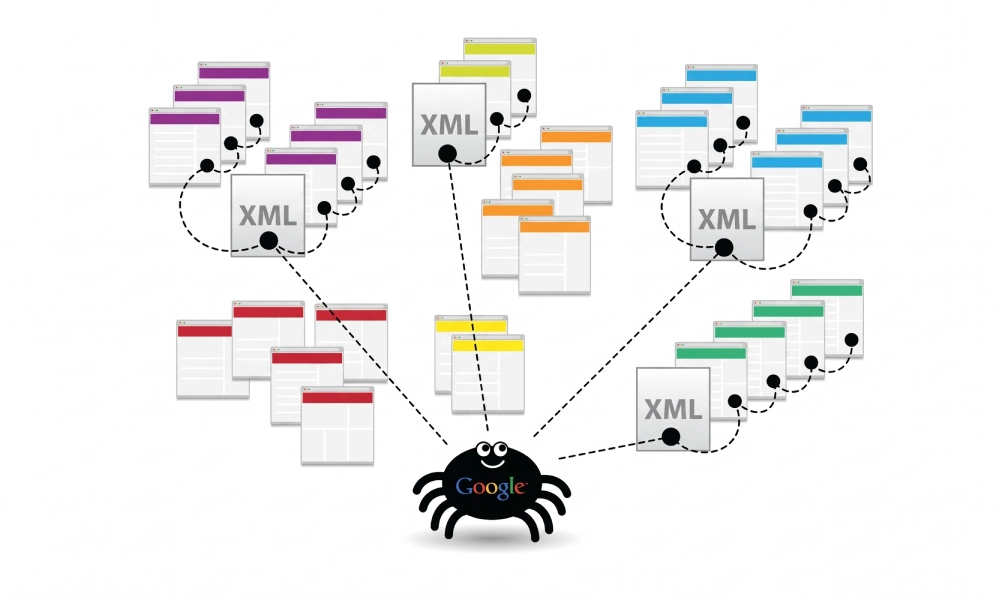
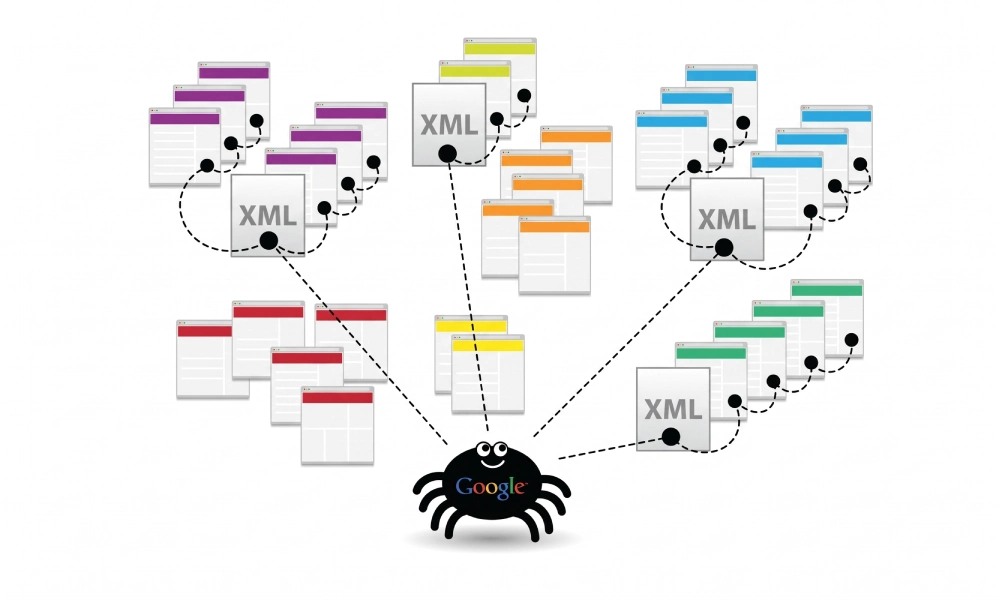
For e-commerce merchants running stores on Shopify, search engine visibility is directly tied to store revenue. If search engine crawlers like Googlebot and Bingbot cannot systematically discover new product drops, collection updates, and promotional landing pages, potential customers will never encounter your products in organic search results.
Unlike open-source platforms that require manual XML generation or complex plugin installations, Shopify provides a built-in automated sitemap architecture. Understanding how to create a sitemap for Shopify, how the platform manages XML feeds, and how to submit these files to search consoles ensures your entire product catalog remains crawlable, indexable, and primed for organic sales.
How Shopify Handles XML Sitemaps Automatically
Shopify generates an XML sitemap automatically for every store. As soon as your online storefront is active and your initial product listings are published, Shopify creates and hosts a master sitemap index file at the following standard location:
https://www.yourdomain.com/sitemap.xmlShopify's sitemap architecture operates dynamically. When you add a new product, launch a seasonal collection, publish a blog post, or update page copy, Shopify updates the sitemap file automatically in real time. There is no need to manually upload static XML files or install third-party sitemap apps to generate basic feeds.
The Structure of a Shopify Sitemap Index File
Shopify utilizes a segmented sitemap index file format. When search bots request https://www.yourdomain.com/sitemap.xml, Shopify returns a master index linking to four specialized child sitemaps:
sitemap_products_1.xml: Lists all published products, SKU variants, and embedded product image metadata (including<image:image>tags, image locations, and titles).sitemap_collections_1.xml: Lists all active automated and manual collection landing hubs.sitemap_blogs_1.xml: Lists all published informational blog articles, news updates, and buyer guides.sitemap_pages_1.xml: Lists standalone informational pages such as About Us, Contact, FAQ, and policy pages.
Here is an example of what Shopify's raw master sitemap index returns to crawlers:
<?xml version="1.0" encoding="UTF-8"?>
<sitemapindex xmlns="http://www.sitemaps.org/schemas/sitemap/0.9">
<sitemap>
<loc>https://www.yourdomain.com/sitemap_products_1.xml?from=1001&to=5000</loc>
</sitemap>
<sitemap>
<loc>https://www.yourdomain.com/sitemap_collections_1.xml</loc>
</sitemap>
<sitemap>
<loc>https://www.yourdomain.com/sitemap_blogs_1.xml</loc>
</sitemap>
<sitemap>
<loc>https://www.yourdomain.com/sitemap_pages_1.xml</loc>
</sitemap>
</sitemapindex>Pre-Submission Checklist: Ensure Your Store Is Accessible
Before submitting your Shopify sitemap to search engines, confirm that your store meets these technical prerequisites:
- Disable the Storefront Password: During store development, Shopify enables password protection by default. If your store is password-protected, search engines receive an HTTP 403 Forbidden or redirect header and cannot crawl your sitemap. Disable password protection under Online Store > Preferences > Restrict store access.
- Connect and Verify Your Custom Domain: Do not submit your default
myshopify.comsubdomain URL. Ensure your custom primary domain (e.g.,https://www.yourdomain.com) is set as the primary domain under Settings > Domains. - Verify Automatic HTTPS Redirection: Confirm that your SSL certificate is provisioned by Shopify and that non-secure HTTP requests automatically redirect to HTTPS.
Step 1: Locate and Verify Your Shopify Sitemap
Verify that your live sitemap file returns clean XML code before submitting it to search consoles:
- Open a web browser in an incognito or private window.
- Navigate to your primary domain followed by
/sitemap.xml(e.g.,https://www.yourdomain.com/sitemap.xml). - Confirm that the page displays a valid XML sitemap index referencing your product, collection, blog, and page sub-sitemaps without server errors.
Step 2: Submit Your Shopify Sitemap to Google Search Console
Registering your sitemap in Google Search Console gives Googlebot a direct discovery pipeline and unlocks vital indexing diagnostic reports:
- Log into Google Search Console:
Sign in to your GSC account and select your verified Domain Property (or URL Prefix Property).
- Navigate to the Sitemaps Dashboard:
In the left-hand navigation menu under Indexing, click on Sitemaps.
- Enter Your Sitemap Path:
Under the section labeled Add a new sitemap, enter:
sitemap.xml - Submit and Confirm Status:
Click Submit. Refresh the page after submission to verify that Google assigns a green "Success" label to the sitemap entry. Google will automatically discover all nested sub-sitemaps (products, collections, pages, and blogs).
Step 3: Submit Your Sitemap to Bing Webmaster Tools
Microsoft Bing powers organic search for Windows devices, Microsoft Edge, and conversational AI summaries. Submitting your sitemap to Bing Webmaster Tools captures valuable desktop traffic:
- Log into your Bing Webmaster Tools account.
- Select your verified store domain from the top-left dropdown.
- Click on Sitemaps in the left sidebar menu.
- Click the blue Submit sitemap button in the upper-right corner.
- Enter the complete absolute URL:
https://www.yourdomain.com/sitemap.xml. - Click Submit and verify that the status reports "Processing" or "Success".
Step 4: Verify Your Shopify robots.txt Configuration
Shopify generates a default robots.txt file located at https://www.yourdomain.com/robots.txt. This file automatically declares the location of your sitemap at the very bottom and blocks crawlers from accessing private transactional paths (such as /cart, /checkout, and /admin).
If you need to customize your robots directives (for example, to disallow internal search query strings or specific collection tag combinations), Shopify allows direct customization using Liquid theme templates:
- In your Shopify admin dashboard, go to Online Store > Themes.
- Click the three dots next to your active theme and select Edit code.
- Under the Templates directory, click Add a new template.
- Select robots.txt from the dropdown list and click Done.
- Shopify creates a file named
robots.txt.liquid. You can insert custom rules while keeping the default{{ content_for_header }}and sitemap references intact:# Standard Shopify sitemap reference Sitemap: {{ shop.url }}/sitemap.xml
How to Exclude Specific Pages from Your Shopify Sitemap
By default, Shopify includes every active product, collection, and page in the sitemap. If you have private landing pages, internal thank-you pages, or wholesale products that should not appear in search results, you must exclude them:
Method A: Setting Products to Draft Status
If an item should not be crawled or indexed, change its status from Active to Draft inside the product settings. Shopify removes draft items from sitemap_products_1.xml immediately.
Method B: Using Metafields to Inject Noindex Tags
To keep a page live on your storefront for direct visitors while keeping it out of search engine indexes and sitemaps, inject a noindex directive using Shopify metafields:
- Navigate to Settings > Custom data > Pages (or Products).
- Add a new metafield definition named
seo.hiddenwith the namespaceseoand keyhidden, set as an integer. - Setting the value to
1on any page instructs Shopify to inject anoindexmeta tag and automatically remove that page from your XML sitemap feed.
Troubleshooting Common Shopify Sitemap Issues
If search consoles flag warnings or your sitemap encounters indexing delays, review these common troubleshooting scenarios:
| Encountered Error | Likely Root Cause | Recommended Technical Solution |
|---|---|---|
| "Couldn't fetch" in GSC | Storefront password enabled, or initial GSC processing queue delay | Disable password under Online Store > Preferences; wait 24 to 48 hours for queue to clear |
| Discovered - Currently Not Indexed | Crawl budget limits; low content depth on product pages | Expand product descriptions; add unique copy; build internal contextual links |
| Out-of-Stock Items in Sitemap | Shopify keeps out-of-stock active products in sitemaps by design | Keep active if inventory restocks; use automated collections to hide sold-out items from menus |
| Deleted Products Returning 404 | Deleted products remain in cached sitemaps for a brief window | Set up URL redirects under Online Store > Navigation > View URL Redirects to send old URLs to relevant collections |
Maintain Automated Discovery Across Your Catalog
Shopify's automated sitemap infrastructure removes the technical overhead of manually generating and maintaining XML files. By disabling password barriers, ensuring your custom primary domain is active, submitting your master index to Google and Bing, and setting up proper 301 redirects for retired products, you provide search engines with an efficient, reliable roadmap to crawl and index your entire catalog.
Looking for Measurable Business Growth?
Partner with BrandStory for end-to-end digital & creative excellence.


Are You Looking for Growth?
Free instant digital marketing audit and improve performance.
Get Graded Today
Transform Your Digital Growth with BrandStory
From SEO, PPC, social media marketing, and content marketing to website development, branding, and lead generation, BrandStory delivers result-driven digital marketing services in Dubai and across the UAE, helping businesses attract, engage, and convert more customers.
Trusted by 1000+ leading brands in Dubai and globally including:




Related Blogs

How to Create a Sitemap for Wix, Webflow, or Custom Websites
Search engines crawl billions of pages daily by traversing hyperlinks across the web. However, if your website relies ...

How to Create a Sitemap for WordPress: Step-by-Step Guide
An XML sitemap is a critical technical blueprint for any WordPress website. It serves as a direct, structured director...
.webp)
How to Find and Fix Broken Links That Hurt Your Sitemap
An XML sitemap is supposed to represent the definitive inventory of your highest-value, fully functioning web pages. W...
.webp)
Crawl Budget: How Sitemaps Help Search Engines Crawl Your Site
Every website operates under computing and bandwidth constraints, and search engines like Google and Bing are no excep...
Why Google Is Not Indexing Your Pages (and How a Sitemap Helps)
Publishing high-quality content or launching an e-commerce catalog does not guarantee automatic inclusion in Google se...

Sitemap Couldn’t Fetch or Has Errors: Fix It in Google Search Console
Submitting an XML sitemap to Google Search Console is intended to streamline crawl discovery and establish a direct co...

