
-
- Digital Marketing
-
 Perf. Marketing
 E-mail Marketing
 PPC Services
 Video Marketing
 Influencer Marketing
- Social Media
 Facebook Marketing
 Instagram Marketing
 Twitter Marketing
 Pinterest Marketing
 TikTok Marketing


-
- Digital Marketing
-
Perf. Marketing
- E-mail Marketing
- PPC Services
- Video Marketing
- Influencer Marketing
- Social Media
- Facebook Marketing
- Instagram Marketing
- Twitter Marketing
- Pinterest Marketing
- TikTok Marketing
Blog
How to Create a Sitemap for Wix, Webflow, or Custom Websites

Want a Quick Summary?
Summarize this article instantly with ChatGPT.
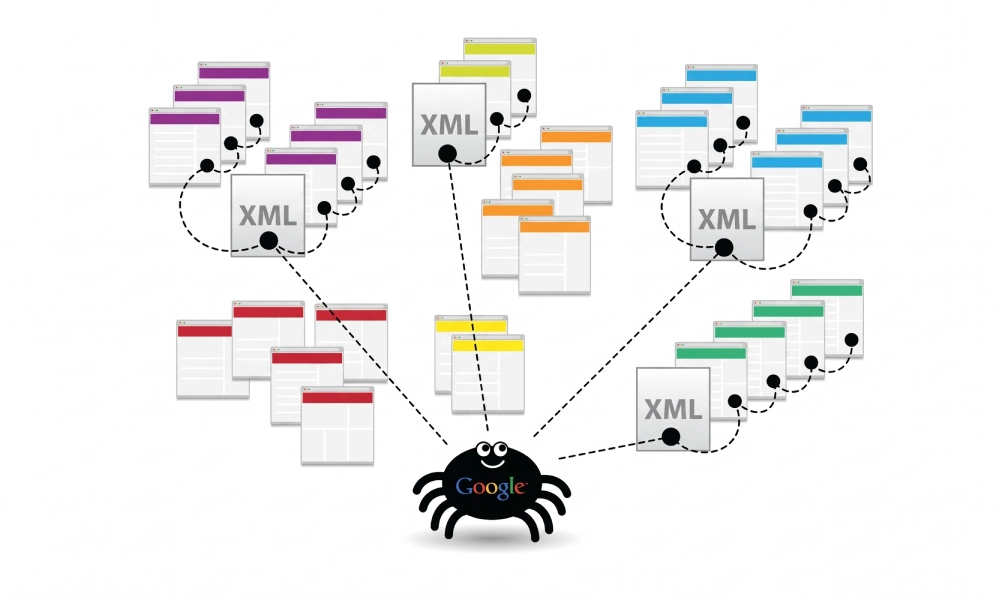
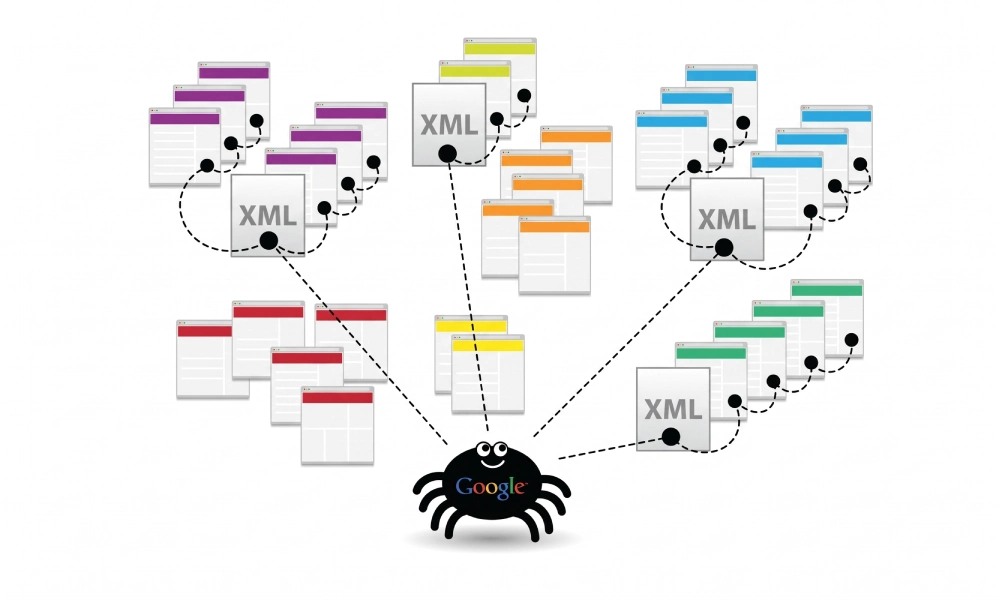
Search engines crawl billions of pages daily by traversing hyperlinks across the web. However, if your website relies on complex JavaScript rendering, decoupled headless frameworks, or multi-tiered CMS architectures, search bots can easily overlook valuable pages. Providing a validated, structured XML sitemap acts as a direct technical map that guides crawlers like Googlebot and Bingbot straight to your canonical content.
While hosted content platforms like Wix and Webflow provide built-in sitemap generation, custom-coded web architectures, static site generators, and bespoke enterprise builds require dedicated configuration. Learning how to create a sitemap for Wix, Webflow, or custom websites ensures your site architecture remains fully crawlable, indexable, and technically sound regardless of the tech stack powering your business.
Platform Architecture Comparison: Native vs. Custom Sitemap Management
Different web platforms handle sitemaps using distinct protocols, varying from automatic native feeds to fully programmatic server configurations:
| Platform / Stack | Sitemap Generation Method | Default URL Endpoint | Customization Options |
|---|---|---|---|
| Wix & Wix Studio | Automated native sitemap index | domain.com/sitemap.xml |
Managed via SEO Settings, page hide toggles, and robots.txt editor |
| Webflow | Native automated or manual XML input | domain.com/sitemap.xml |
Configured via Project Settings > SEO; supports page-level exclusions |
| Custom Stack (React / Node / PHP) | Server route generation or crawler export | domain.com/sitemap.xml |
Full programmatic control over tags, lastmod dates, and URL limits |
| Static Site (HTML / SSG) | Build-time export or external crawler tool | domain.com/sitemap.xml |
Direct file uploads via FTP/SFTP to the public server root directory |
Part 1: How to Set Up and Verify a Sitemap in Wix
Wix automatically creates and updates an XML sitemap for every domain connected to a premium plan. The file is structured as a master sitemap index linking to child feeds for static pages, blog articles, store products, and booking services.
Step 1: Access and Verify Your Live Wix Sitemap
- Open a web browser in incognito mode.
- Navigate to your live website domain followed by
/sitemap.xml(for example:https://www.yourdomain.com/sitemap.xml). - Confirm that Wix returns a valid XML index referencing sub-sitemaps such as
pages-sitemap.xml,blog-posts-sitemap.xml, orstore-products-sitemap.xml.
Step 2: Exclude Private Pages from the Wix Sitemap
If you have utility pages, member-only areas, or thank-you redirects that should not appear in Google search results, exclude them through the Wix Editor:
- Open the Wix Editor or Wix Studio workspace.
- Click Pages & Menu in the left sidebar.
- Click the three dots next to the page you want to exclude and select SEO Basics.
- Toggle off the switch labeled "Let search engines index this page".
- Publish your changes. Wix will inject a
noindextag into the page and automatically remove the URL from your XML sitemap feed.
Step 3: Verify the robots.txt Sitemap Directive in Wix
Wix automatically links your sitemap inside your robots.txt file. You can verify or modify this by navigating to Marketing & SEO > SEO Tools > Robots.txt Editor in your Wix dashboard.
Part 2: How to Create and Manage a Sitemap in Webflow
Webflow offers two methods for managing sitemaps: automatic generation based on published pages and collections, or manual XML generation for custom setups.
Method A: Enable Webflow Automated Sitemap Generation (Recommended)
- Open your Webflow dashboard and navigate to Project Settings.
- Click on the SEO tab in the top navigation bar.
- Scroll down to the section titled Sitemap.
- Toggle the switch labeled "Auto-generate sitemap" to Yes.
- Click Save Changes and publish your project to the custom domain. Webflow will compile all published CMS collections, static pages, and products into an XML document located at
https://www.yourdomain.com/sitemap.xml.
Method B: Exclude Specific Pages in Webflow
To keep specific pages out of your automated Webflow sitemap:
- Open the Webflow Designer and click the Pages panel.
- Hover over the target page and click the settings cog icon.
- Scroll to SEO Settings.
- Check the box labeled "Exclude this page from site search results" or add custom meta tags to apply
noindexdirectives. - Publish your website to refresh the XML output.
Part 3: How to Create an XML Sitemap for Custom Websites
Custom-coded web applications built on modern frameworks (such as Next.js, Nuxt, Laravel, or Django) or static HTML websites do not possess automatic sitemap generators unless specifically coded by software engineers.
Step 1: Audit Your Canonical URL Inventory
Before assembling your sitemap, compile a list of all live, authoritative URLs. Ensure that your inventory adheres strictly to core technical standards:
- Include only HTTP 200 OK canonical destinations.
- Exclude all 301/302 redirects, broken 404 pages, and staging URLs.
- Exclude parameterized filter URLs, search queries, and dynamic session parameters.
- Exclude any internal page containing a
noindexmeta robots tag.
Step 2: Generate a Compliant File Using an Online Generator
Writing XML syntax manually for hundreds or thousands of pages creates risks of unescaped ampersands, unclosed tags, or malformed namespaces. To avoid these syntax failures, you can audit your live domain and export an error-free file using an xml sitemap generator.
The online tool crawls your active architecture, extracts canonical links, applies correct last modification timestamps, and packages your links into standard Sitemaps.org protocols ready for production deployment.
Step 3: Upload the Sitemap to Your Web Server Root
Once you download the compiled sitemap.xml file, deploy it to your server:
- Connect to your web hosting environment via FTP, SFTP, SSH, or your control panel File Manager (such as cPanel, Plesk, or Cloudways).
- Navigate to your primary web root folder (commonly named
public_html/,www/, orhtdocs/). - Upload the
sitemap.xmlfile directly into this directory. - Open a web browser and visit
https://www.yourdomain.com/sitemap.xmlto confirm that the file returns an HTTP 200 OK header and displays the XML tree correctly.
Step 4: Programmatic Generation for Dynamic Frameworks (Next.js Example)
If you maintain a modern React application using Next.js App Router, generate dynamic sitemaps programmatically by creating a sitemap.js or sitemap.ts file in your app/ directory:
export default async function sitemap() {
  const baseUrl = 'https://www.yourdomain.com';

  // Example fetching dynamic product slugs from an API
  const products = await fetch('https://api.yourdomain.com/products').then((res) => res.json());

  const productUrls = products.map((product) => ({
    url: `${baseUrl}/products/${product.slug}/`,
    lastModified: product.updatedAt,
    changeFrequency: 'weekly',
    priority: 0.8,
  }));

  return [
    {
      url: baseUrl,
      lastModified: new Date(),
      changeFrequency: 'daily',
      priority: 1.0,
    },
    ...productUrls,
  ];
}
Adding the Sitemap Reference to robots.txt
Regardless of whether you use Wix, Webflow, or a custom web server, ensure that search engine bots locate your sitemap automatically upon visiting your domain by adding an explicit directive to the bottom of your robots.txt file:
User-agent: *
Disallow: /admin/
Disallow: /cart/

Sitemap: https://www.yourdomain.com/sitemap.xml
Submitting Your Sitemap to Search Consoles
Once your sitemap is live and verified on your domain, submit it directly to major search engines to trigger crawl discovery and monitor indexation status:
Submitting to Google Search Console
- Log into your Google Search Console account.
- Select your verified domain property from the top-left dropdown selector.
- Click on Sitemaps in the left sidebar menu under the Indexing header.
- Under the section labeled Add a new sitemap, enter your file path (e.g.,
sitemap.xml). - Click Submit and verify that the status reports a green "Success" label after processing.
Submitting to Bing Webmaster Tools
- Log into Bing Webmaster Tools and select your verified website.
- Click on Sitemaps in the left-hand navigation menu.
- Click the blue Submit sitemap button located in the upper-right corner.
- Enter the complete absolute URL (e.g.,
https://www.yourdomain.com/sitemap.xml). - Click Submit and verify that the file shows a status of "Processing" or "Success".
Common Sitemap Troubleshooting Scenarios
If search consoles report warnings during ingestion, review these standard technical failure points:
- "Couldn't Fetch" on Wix or Webflow: This is frequently a temporary Google Search Console processing queue delay. Wait 24 to 48 hours for Googlebot to clear its backlog. If the issue persists, verify that your custom primary domain is connected correctly and that password protection is turned off.
- Sitemap Is HTML Error: Occurs when the URL entered into Search Console does not point to an XML file, but redirects to an HTML error page or login screen. Double-check your exact filename and path.
- Unescaped XML Characters on Custom Builds: Standard XML parsers reject characters like ampersands (
&), double quotes ("), and angle brackets (<,>) inside URL strings unless they are escaped as entities (e.g.,&). - Protocol Mismatches: Ensure that every URL in the sitemap matches your site's secure protocol (HTTPS) and canonical host format (www or non-www).
Maintain Scalable Crawl Efficiency
Whether you manage an enterprise storefront on Webflow, a service business on Wix, or an engineered web application on custom infrastructure, an accurate XML sitemap is a non-negotiable asset for technical SEO. By keeping your URLs strictly canonical, updating modification timestamps as content changes, and submitting validated feeds directly to search consoles, you build a dependable foundation that supports rapid search engine crawling, complete indexation, and sustainable organic traffic growth.
Looking for Measurable Business Growth?
Partner with BrandStory for end-to-end digital & creative excellence.


Are You Looking for Growth?
Free instant digital marketing audit and improve performance.
Get Graded Today
Transform Your Digital Growth with BrandStory
From SEO, PPC, social media marketing, and content marketing to website development, branding, and lead generation, BrandStory delivers result-driven digital marketing services in Dubai and across the UAE, helping businesses attract, engage, and convert more customers.
Trusted by 1000+ leading brands in Dubai and globally including:




Related Blogs
How to Create a Sitemap for Shopify: Setup and Submission Guide
For e-commerce merchants running stores on Shopify, search engine visibility is directly tied to store revenue. If sea...

How to Create a Sitemap for WordPress: Step-by-Step Guide
An XML sitemap is a critical technical blueprint for any WordPress website. It serves as a direct, structured director...
.webp)
How to Find and Fix Broken Links That Hurt Your Sitemap
An XML sitemap is supposed to represent the definitive inventory of your highest-value, fully functioning web pages. W...
.webp)
Crawl Budget: How Sitemaps Help Search Engines Crawl Your Site
Every website operates under computing and bandwidth constraints, and search engines like Google and Bing are no excep...
Why Google Is Not Indexing Your Pages (and How a Sitemap Helps)
Publishing high-quality content or launching an e-commerce catalog does not guarantee automatic inclusion in Google se...

Sitemap Couldn’t Fetch or Has Errors: Fix It in Google Search Console
Submitting an XML sitemap to Google Search Console is intended to streamline crawl discovery and establish a direct co...

