
-
- Digital Marketing
-
 Perf. Marketing
 E-mail Marketing
 PPC Services
 Video Marketing
 Influencer Marketing
- Social Media
 Facebook Marketing
 Instagram Marketing
 Twitter Marketing
 Pinterest Marketing
 TikTok Marketing


-
- Digital Marketing
-
Perf. Marketing
- E-mail Marketing
- PPC Services
- Video Marketing
- Influencer Marketing
- Social Media
- Facebook Marketing
- Instagram Marketing
- Twitter Marketing
- Pinterest Marketing
- TikTok Marketing
Blog
How to Create a Sitemap for WordPress: Step-by-Step Guide

Want a Quick Summary?
Summarize this article instantly with ChatGPT.
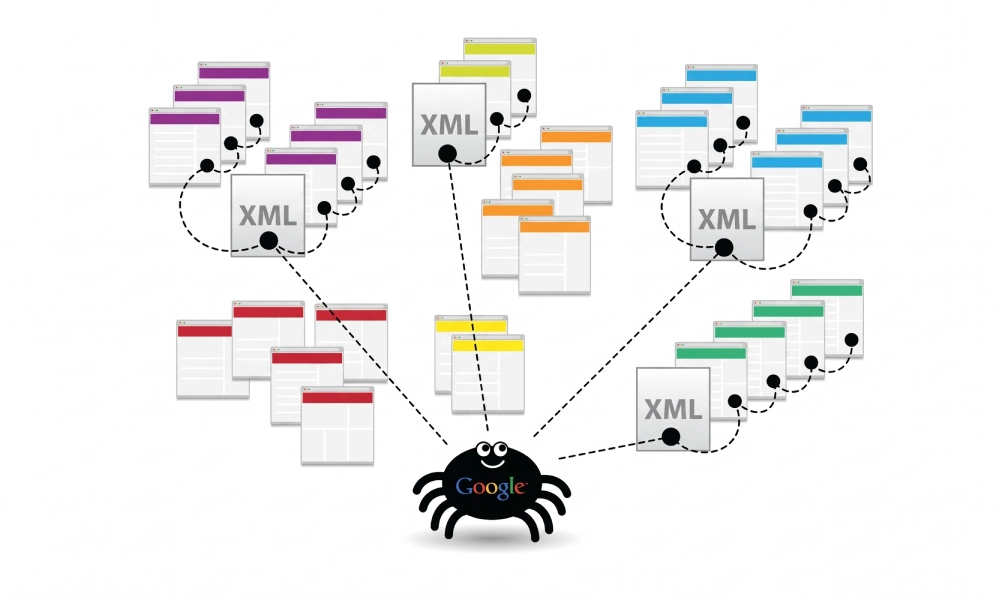
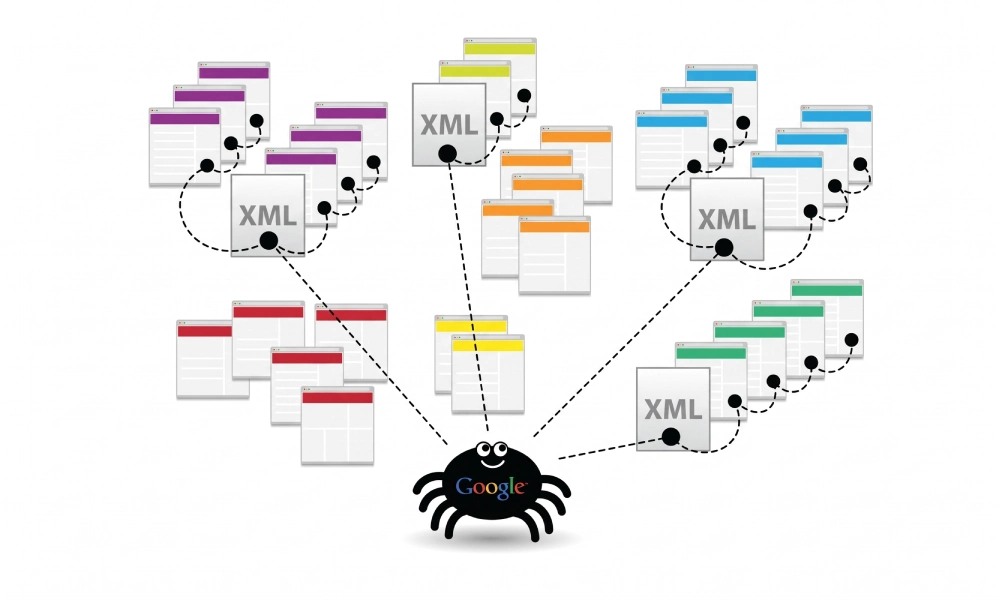
An XML sitemap is a critical technical blueprint for any WordPress website. It serves as a direct, structured directory that tells search engine crawlers like Googlebot and Bingbot which pages, posts, and media files exist on your domain, which URLs represent authoritative canonical versions, and when content was last updated.
While WordPress includes basic native XML capabilities out of the box, enterprise publishers, e-commerce stores, and high-traffic blogs frequently require enhanced control over taxonomies, update frequencies, and image metadata. Learning how to create a sitemap for WordPress using native features, specialized plugins, and manual verification methods ensures your content is crawled, understood, and indexed efficiently.
Native WordPress Sitemaps vs. SEO Plugin Sitemaps
Since the release of WordPress 5.5, core software automatically generates a basic XML sitemap without requiring third-party tools. However, dedicated SEO plugins offer advanced configuration options that core WordPress lacks:
| Feature Dimension | WordPress Core Native Sitemap | SEO Plugin Sitemap (Rank Math / Yoast) |
|---|---|---|
| Default URL Endpoint | domain.com/wp-sitemap.xml |
domain.com/sitemap_index.xml |
| Plugin Requirement | None (built into WordPress core) | Requires installing an active SEO plugin |
| Exclusion Controls | Requires PHP code filters in functions.php | Toggle checkboxes inside WordPress dashboard |
| Media & Image Extensions | Does not include image tags | Includes <image:image> schema metadata |
| Lastmod Timestamp Support | Basic date support | Dynamic W3C timestamps based on revisions |
| URL Splitting Threshold | 2,000 URLs per sub-sitemap | Configurable (typically 1,000 URLs per file) |
Method 1: Using the Native WordPress Core Sitemap
If you prefer a lightweight installation without third-party plugins, you can use WordPress core functionality immediately:
- Verify Core Indexing Settings:
Log into your WordPress admin dashboard. Navigate to Settings > Reading. Ensure the checkbox labeled "Discourage search engines from indexing this site" is unchecked. If this option is enabled, WordPress disables native sitemaps entirely and injects noindex directives.
- Access Your Native Endpoint:
Open an incognito browser tab and navigate to
https://www.yourdomain.com/wp-sitemap.xml. WordPress will display an XML index file linking to child sitemaps for posts, pages, and taxonomies (e.g.,wp-sitemap-posts-post-1.xml,wp-sitemap-posts-page-1.xml). - Excluding Specific Post Types via PHP:
If you need to remove private custom post types or specific taxonomies from the native sitemap, add a filter function to your child theme's
functions.phpfile:add_filter( 'wp_sitemaps_post_types', function( $post_types ) { unset( $post_types['testimonial'] ); return $post_types; } );
Method 2: Using the Rank Math SEO Plugin (Recommended)
Rank Math automatically disables the basic native core sitemap and replaces it with a fully customizable, high-performance sitemap index file with media support:
- Install and Activate Rank Math:
Go to Plugins > Add New in your WordPress dashboard. Search for "Rank Math SEO", click Install Now, and select Activate.
- Navigate to Sitemap Settings:
In the WordPress admin sidebar, go to Rank Math > Sitemap Settings.
- Configure General Settings:
Review the primary settings:
Links Per Sitemap: Keep default at 1,000 URLs to ensure quick server response times.
Images in Sitemap: Toggle to Enabled to ensure product photography and blog illustrations qualify for Google Images indexation.
Include Featured Images: Toggle to Enabled. - Configure Post Types and Taxonomies:
Click on Posts, Pages, and Products in the sub-menu. Ensure "Include in Sitemap" is switched on for primary content.
Click on Categories and Tags. Include categories if you curate them as landing hubs, but disable tags to prevent duplicate crawl bloat. - Verify Your Live Sitemap:
Click the sitemap URL displayed at the top of the Rank Math settings page, typically resolving at
https://www.yourdomain.com/sitemap_index.xml.
Method 3: Using the Yoast SEO Plugin
Yoast SEO is another widely used option for generating dynamic WordPress sitemaps:
- Install and Activate Yoast SEO:
Go to Plugins > Add New, search for "Yoast SEO", and click Install Now followed by Activate.
- Enable XML Sitemaps:
In the admin sidebar, navigate to Yoast SEO > Settings. Under the General tab, locate Site features. Scroll down to XML sitemaps and ensure the toggle switch is turned on.
- Manage Indexable Content Types:
In the Yoast settings sidebar under Content types:
Set Show Posts in search results to On.
Set Show Pages in search results to On.
Under Categories & tags, disable post formats and unused tags to keep the sitemap clean. - Verify the File:
Navigate to
https://www.yourdomain.com/sitemap_index.xmlto confirm that Yoast is rendering the child sitemap tree.
Method 4: Generating Sitemaps for Custom or Headless WordPress
If you run a decoupled WordPress architecture (such as Next.js, Gatsby, or Nuxt consuming the WordPress REST API or WPGraphQL), standard plugin sitemaps hosted on the backend server may fail to reflect the frontend domain URLs.
- Frontend Route Handlers: In Next.js App Router, build a dynamic route at
app/sitemap.xml/route.jsthat fetches posts via REST API and constructs valid XML pointing to frontend paths. - Using External Crawlers: For static exports or decoupled platforms needing an independent baseline, audit and export compliant files using an online sitemap generator, then upload the validated
sitemap.xmlfile directly to your public frontend hosting root.
Step-by-Step Server and robots.txt Integration
Once your sitemap is generated and verified, make sure search engine crawlers find it automatically upon arrival:
- Edit Your robots.txt File:
In WordPress, you can edit this file via Rank Math (General Settings > Edit robots.txt), Yoast (Tools > File editor), or by editing the physical file in your web root via FTP.
- Declare Your Master Sitemap Directive:
Add the absolute URL of your sitemap index at the bottom of the file:
User-agent: *
Disallow: /wp-admin/
Allow: /wp-admin/admin-ajax.php

Sitemap: https://www.yourdomain.com/sitemap_index.xml
Submitting Your WordPress Sitemap to Search Consoles
To initiate crawling and track indexing diagnostics, submit your verified endpoint directly to major search engines:
Google Search Console
- Log into your Google Search Console property.
- Under the Indexing menu on the left, click Sitemaps.
- In the "Add a new sitemap" box, type
sitemap_index.xml(orwp-sitemap.xmlif using native core). - Click Submit and verify that the status reports a green "Success".
Bing Webmaster Tools
- Sign into Bing Webmaster Tools and select your verified site.
- Click Sitemaps in the left sidebar, then click the blue Submit sitemap button.
- Enter the complete absolute URL (e.g.,
https://www.yourdomain.com/sitemap_index.xml) and submit.
Troubleshooting Common WordPress Sitemap Errors
If your sitemap fails to render or produces errors in Google Search Console, check these frequent issues:
- Blank Page or XML Parsing Error on Line 1: This is typically caused by a blank line or empty whitespace before the opening
<?phptag in your theme'sfunctions.phpfile or a custom plugin. Remove any trailing or leading whitespace outside PHP tags. - 404 Not Found on Sitemap URL: If your sitemap returns a 404 error, navigate to Settings > Permalinks in WordPress and click Save Changes without editing anything. This flushes and regenerates WordPress rewrite rules.
- Caching Conflicts: Caching plugins (such as WP Rocket, W3 Total Cache, or LiteSpeed Cache) may cache XML feeds as static HTML. Add your sitemap URL paths to the "Never Cache URLs" exclusion list in your caching plugin settings.
- Memory Exhaustion on Large Sites: If you manage tens of thousands of posts, loading dynamic sitemaps can cause PHP execution timeouts. Reduce the link limit per sitemap to 500 or 1,000 inside your SEO plugin, or increase your server's
memory_limitto 256M inwp-config.php.
Maintain Automated Discovery Across Your Site
A properly configured WordPress sitemap establishes a reliable communication bridge with search engines. By selecting the right implementation method, keeping taxonomy archives curated, declaring your file in robots.txt, and monitoring coverage reports inside Google Search Console, you ensure every published post and product page remains visible and accessible to search engine crawlers.
Looking for Measurable Business Growth?
Partner with BrandStory for end-to-end digital & creative excellence.


Are You Looking for Growth?
Free instant digital marketing audit and improve performance.
Get Graded Today
Transform Your Digital Growth with BrandStory
From SEO, PPC, social media marketing, and content marketing to website development, branding, and lead generation, BrandStory delivers result-driven digital marketing services in Dubai and across the UAE, helping businesses attract, engage, and convert more customers.
Trusted by 1000+ leading brands in Dubai and globally including:




Related Blogs

How to Create a Sitemap for Wix, Webflow, or Custom Websites
Search engines crawl billions of pages daily by traversing hyperlinks across the web. However, if your website relies ...
How to Create a Sitemap for Shopify: Setup and Submission Guide
For e-commerce merchants running stores on Shopify, search engine visibility is directly tied to store revenue. If sea...
.webp)
How to Find and Fix Broken Links That Hurt Your Sitemap
An XML sitemap is supposed to represent the definitive inventory of your highest-value, fully functioning web pages. W...
.webp)
Crawl Budget: How Sitemaps Help Search Engines Crawl Your Site
Every website operates under computing and bandwidth constraints, and search engines like Google and Bing are no excep...
Why Google Is Not Indexing Your Pages (and How a Sitemap Helps)
Publishing high-quality content or launching an e-commerce catalog does not guarantee automatic inclusion in Google se...

Sitemap Couldn’t Fetch or Has Errors: Fix It in Google Search Console
Submitting an XML sitemap to Google Search Console is intended to streamline crawl discovery and establish a direct co...

