
-
- Digital Marketing
-
 Perf. Marketing
 E-mail Marketing
 PPC Services
 Video Marketing
 Influencer Marketing
- Social Media
 Facebook Marketing
 Instagram Marketing
 Twitter Marketing
 Pinterest Marketing
 TikTok Marketing


-
- Digital Marketing
-
Perf. Marketing
- E-mail Marketing
- PPC Services
- Video Marketing
- Influencer Marketing
- Social Media
- Facebook Marketing
- Instagram Marketing
- Twitter Marketing
- Pinterest Marketing
- TikTok Marketing
Blog
How to Find and Fix Broken Links That Hurt Your Sitemap
.webp)
Want a Quick Summary?
Summarize this article instantly with ChatGPT.
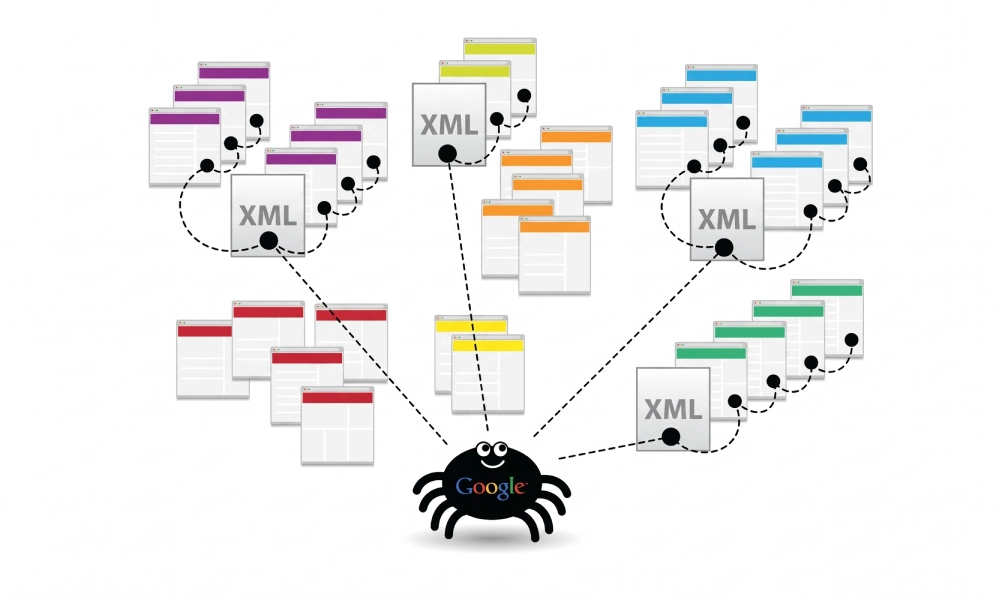
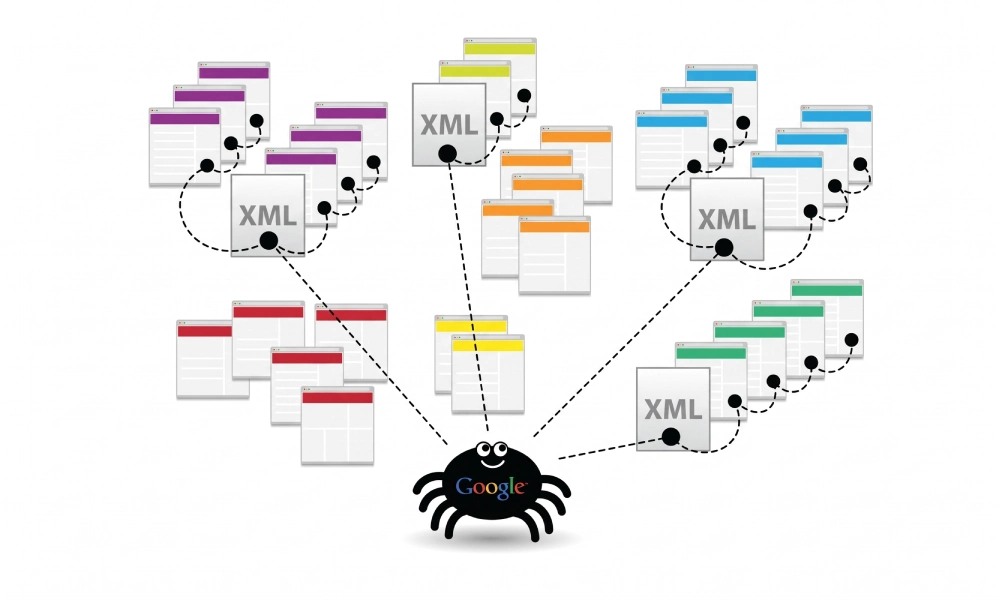
An XML sitemap is supposed to represent the definitive inventory of your highest-value, fully functioning web pages. When broken links, 404 response codes, or unresolved redirects make their way into your sitemap, search engine crawlers receive conflicting signals about your site structure.
Search bots like Googlebot rely on sitemaps to allocate crawl budget efficiently. Feeding dead ends into that pipeline wastes computing resources, triggers crawl errors in Google Search Console, and delays the discovery of your revenue-generating content. Learning how to find and fix broken links that hurt your sitemap keeps your crawl paths clean, preserves link equity, and protects your organic search performance.
How Broken Links Enter Your Sitemap Architecture
Sitemaps rarely break overnight. Instead, dead links accumulate through routine website management, CMS template adjustments, and incomplete migrations:
- Retired Products and Seasonal Inventory: E-commerce stores often delete out-of-stock items or seasonal promotions without updating database queries, leaving deleted URLs active in static XML files.
- Unmonitored URL Restructuring: Updating a slug or changing category taxonomy without updating the sitemap generator leaves old permalinks stranded.
- Improper Redirect Integration: Adding 301 redirects without updating your sitemap files causes search engines to waste crawl hops resolving redirect chains instead of landing directly on canonical destinations.
- CMS Synchronization Lags: Some dynamic CMS platforms generate static sitemaps at scheduled build intervals rather than querying live server routes, causing deleted pages to persist for weeks.
Why Broken URLs in Sitemaps Damage Technical SEO
Google considers sitemaps to be strong hints regarding canonical priority. When sitemaps contain broken URLs, several technical problems emerge:
- Wasted Crawl Budget: Crawlers spend limited request capacity attempting to fetch non-existent 404 or 410 URLs instead of indexing new, profitable pages.
- Search Console Warnings: Google Search Console flags issues under Submitted URL not found (404) or Submitted URL returns soft 404, which can indicate poor ongoing site maintenance.
- Diluted PageRank Distribution: If internal links point to 404 endpoints that are also reinforced by sitemap listings, link equity is lost rather than passed through to active, ranking pages.
Step 1: Audit Your Sitemap to Uncover Broken URLs
Before applying technical fixes, compile an exhaustive inventory of non-200 OK URLs currently referenced in your sitemaps:
Method A: Use Screaming Frog SEO Spider (Sitemap Mode)
- Open Screaming Frog and click Mode > List in the top navigation menu.
- Click Upload and select Download Sitemap.
- Enter your primary sitemap or sitemap index URL (e.g.,
https://www.yourdomain.com/sitemap_index.xml) and click OK. - Once the crawl finishes, navigate to the Response Codes tab.
- Filter the table by Client Error (4xx) and Redirection (3xx).
- Click on any flagged URL and check the Inlinks tab at the bottom to see where that URL is linked across your site.
- Export the full list to a CSV spreadsheet for remediation.
Method B: Google Search Console Page Indexing Report
- Log into Google Search Console and select your domain property.
- Navigate to Indexing > Pages in the left sidebar.
- Change the primary filter dropdown from "All known pages" to All submitted pages.
- Scroll down to the table labeled Why pages aren't indexed.
- Identify rows labeled Submitted URL not found (404), Submitted URL seems to be a Soft 404, or Page with redirect.
Step 2: Apply the Right Technical Fix Based on Status Code
Every broken URL requires a specific fix depending on whether the content was relocated, permanently retired, or mistakenly removed:
| Encountered Error | URL Situation | Correct Technical Resolution |
|---|---|---|
| 404 Not Found (Has Replacement) | Page was moved or updated to a new URL slug | Deploy a 301 permanent redirect to the exact successor; update the sitemap to list the new destination directly |
| 404 Not Found (Permanently Retired) | Content, product, or campaign is deleted with no alternative | Remove the dead URL from the sitemap immediately; allow the server to return a clean 410 Gone or 404 code |
| 301 / 302 Redirect Listed | Sitemap lists an outdated source URL instead of the destination | Replace the redirecting URL in your sitemap with the final canonical 200 OK destination |
| Soft 404 Error | Empty category or search page returning a 200 OK code | Enrich the page with active products/copy, add a noindex tag, or remove the URL from the sitemap |
| 500 Internal Server Error | Server crashes or database timeouts on crawl | Debug server logs, optimize database queries, or increase script memory limits before re-adding to sitemap |
Step 3: Update Internal Hyperlinks to Prevent Re-Discovery
Removing a broken link from your sitemap file is only half the battle. If your blog posts, header menus, or footer links still link to that broken URL, search crawlers will continue discovering and reporting it.
- Update Navigation Menus: Ensure your global headers, footers, and category sidebars point exclusively to live 200 OK canonical addresses.
- Fix In-Content Hyperlinks: Use database search-and-replace tools or CMS link checker plugins to update legacy hyperlinks inside old blog posts so they point directly to active URLs.
- Eliminate Redirect Hops: Ensure internal links point directly to the destination URL rather than routing visitors through intermediate 301 redirect hops.
Step 4: Regenerate a Validated, Clean XML Sitemap
Once your database entries are clean, redirects mapped, and dead pages removed, rebuild your sitemap files so search engines receive only valid 200 OK canonical addresses.
If you run a custom platform, static build, or headless CMS that lacks automated database sitemap generation, you can crawl your updated architecture and build a clean, protocol-compliant file using a verified xml sitemap generator. This ensures your exported files contain only verified 200 OK destinations, meet standard file size limits, and properly escape XML entities before deployment.
Step 5: Upload, Reference, and Validate in Search Console
Deploy your updated sitemap and confirm that search engines read your changes:
- Upload to Your Server Root:
Upload the new
sitemap.xmlfile to your public root folder (e.g.,/public_html/) and verify in your browser that it loads cleanly with an HTTP 200 OK status. - Verify Robots.txt Reference:
Ensure the sitemap URL is declared at the bottom of your
robots.txtfile:Sitemap: https://www.yourdomain.com/sitemap.xml - Resubmit in Google Search Console:
Navigate to Indexing > Sitemaps in Google Search Console. Resubmit your sitemap path to prompt Googlebot to clear legacy errors and queue fresh crawl requests.
- Validate Resolved Errors:
Return to the Pages report, open the specific 404 or redirect error group, and click the Validate Fix button. Google will systematically recrawl the flagged URLs and confirm that errors have been resolved.
Maintain Continuous Sitemap Hygiene
Finding and fixing broken links in your sitemap is not a one-time clean-up; it is an ongoing maintenance discipline. By scheduling regular crawls, updating internal links alongside URL changes, keeping redirects out of XML files, and revalidating sitemaps after major site updates, you give search engines a clear path to crawl, index, and rank your most valuable content.
Looking for Measurable Business Growth?
Partner with BrandStory for end-to-end digital & creative excellence.


Are You Looking for Growth?
Free instant digital marketing audit and improve performance.
Get Graded Today
Transform Your Digital Growth with BrandStory
From SEO, PPC, social media marketing, and content marketing to website development, branding, and lead generation, BrandStory delivers result-driven digital marketing services in Dubai and across the UAE, helping businesses attract, engage, and convert more customers.
Trusted by 1000+ leading brands in Dubai and globally including:




Related Blogs

How to Create a Sitemap for Wix, Webflow, or Custom Websites
Search engines crawl billions of pages daily by traversing hyperlinks across the web. However, if your website relies ...
How to Create a Sitemap for Shopify: Setup and Submission Guide
For e-commerce merchants running stores on Shopify, search engine visibility is directly tied to store revenue. If sea...

How to Create a Sitemap for WordPress: Step-by-Step Guide
An XML sitemap is a critical technical blueprint for any WordPress website. It serves as a direct, structured director...
.webp)
Crawl Budget: How Sitemaps Help Search Engines Crawl Your Site
Every website operates under computing and bandwidth constraints, and search engines like Google and Bing are no excep...
Why Google Is Not Indexing Your Pages (and How a Sitemap Helps)
Publishing high-quality content or launching an e-commerce catalog does not guarantee automatic inclusion in Google se...

Sitemap Couldn’t Fetch or Has Errors: Fix It in Google Search Console
Submitting an XML sitemap to Google Search Console is intended to streamline crawl discovery and establish a direct co...

