
-
- Digital Marketing
-
 Perf. Marketing
 E-mail Marketing
 PPC Services
 Video Marketing
 Influencer Marketing
- Social Media
 Facebook Marketing
 Instagram Marketing
 Twitter Marketing
 Pinterest Marketing
 TikTok Marketing


-
- Digital Marketing
-
Perf. Marketing
- E-mail Marketing
- PPC Services
- Video Marketing
- Influencer Marketing
- Social Media
- Facebook Marketing
- Instagram Marketing
- Twitter Marketing
- Pinterest Marketing
- TikTok Marketing
Blog
How to Submit a Sitemap to Google Search Console: Step-by-Step Guide
Want a Quick Summary?
Summarize this article instantly with ChatGPT.
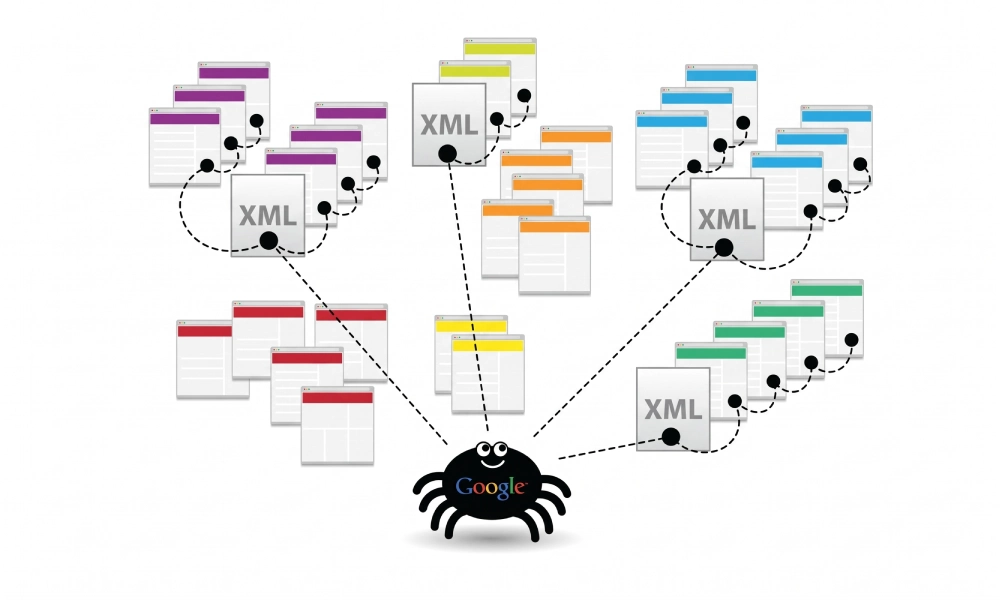
Submitting an XML sitemap to Google Search Console (GSC) is one of the most critical initial steps in technical search engine optimization. An XML sitemap acts as a structured roadmap of your domain, informing Googlebot about your canonical URLs, media assets, and content modification dates.
While Googlebot can eventually discover pages through internal hyperlinks, relying exclusively on automated link following can delay the indexation of newly published content, leave orphan pages undiscovered, and waste precious crawl budget. Learning how to submit a sitemap to Google Search Console establishes a direct communication channel between your web server and Google's indexing systems, giving you instant visibility into crawl diagnostics, coverage errors, and indexing status.
Prerequisites Before Submitting Your Sitemap
Before initiating the submission workflow inside Google Search Console, make sure you have completed the following technical checks:
- Verify Domain Property Ownership: You must have verified ownership of the website property in Google Search Console using DNS record verification, an HTML file upload, a tracking tag, or Google Tag Manager.
- Ensure URLs Return HTTP 200 OK: Every URL listed within the sitemap must be a canonical, live page returning an HTTP 200 OK status code. Do not include 301 redirects, 404 broken links, or pages blocked with
noindexdirectives. - Host the File on the Same Domain: The sitemap must reside on the same root domain or verified sub-property that you are managing in GSC (e.g.,
https://www.yourdomain.com/sitemap.xml). - Verify Protocol and Host Matches: If your website enforces HTTPS and uses the
wwwprefix, your sitemap and its listed URLs must explicitly reflect HTTPS andwww.
Step 1: Locate and Validate Your Sitemap URL
Most content management systems generate sitemaps automatically at standard endpoints:
- WordPress (Plugins like Yoast or Rank Math):
https://www.yourdomain.com/sitemap_index.xml - Shopify:
https://www.yourdomain.com/sitemap.xml - Webflow, Squarespace, and Wix:
https://www.yourdomain.com/sitemap.xml
Open a web browser and navigate directly to your sitemap URL. Confirm that the browser renders a clean XML tree without displaying parsing errors, blank screens, or security warnings.
If you run a custom-built website, headless application, or static architecture that lacks automated sitemap generation, you can crawl your live URLs and build a protocol-compliant file using an xml sitemap generator. Once generated, upload the resulting sitemap.xml file to your website's public root directory (e.g., /public_html/) so it resolves live in a browser.
Step 2: Submit the Sitemap in Google Search Console
Once your sitemap is live and verified, follow these steps to submit it directly to Google:
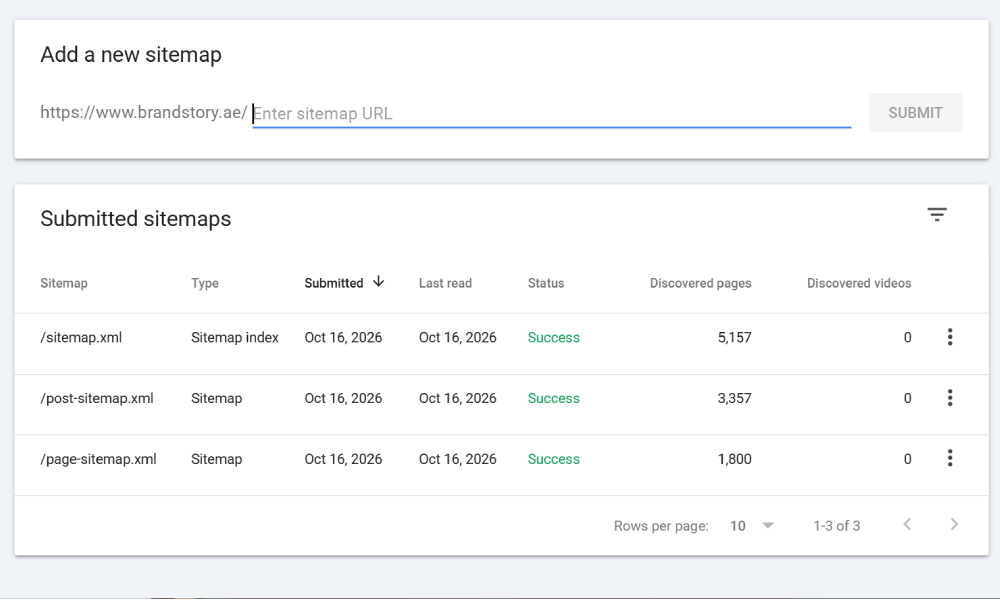
- Log into Google Search Console:
Visit the Google Search Console dashboard and sign in with the Google account associated with your website property.
- Select Your Property:
Click the property selector dropdown in the top-left corner of the sidebar and select the website you are managing.
- Navigate to the Sitemaps Section:
In the left-hand navigation menu under the Indexing category, click on Sitemaps.
- Enter Your Sitemap URL Path:
Under the section labeled Add a new sitemap, your domain root will already be displayed. Enter only the relative path or filename of your sitemap into the text box (for example, enter
sitemap_index.xmlorsitemap.xml). - Click Submit:
Click the Submit button. A confirmation popup will notify you that Google will process the sitemap periodically to discover updated content.
Step 3: Understand Sitemap Processing Statuses
After clicking submit, reload the page to check the Submitted sitemaps table. Google assigns one of three primary status labels to your submission:
| Status Label | What It Means | Required Action |
|---|---|---|
| Success | Google fetched and parsed the sitemap file without structural errors. Discovered URL counts will display shortly. | No action required. Googlebot will schedule crawls based on its internal crawl queue. |
| Has Errors | Google was able to fetch the file, but encountered invalid XML syntax, non-canonical URLs, or unescaped characters. | Click into the row to view specific line-item syntax errors and fix them in your XML file. |
| Couldn't Fetch | Googlebot was blocked from accessing the file path entirely. | Check server response codes, verify DNS settings, and confirm robots.txt is not blocking the sitemap. |
How to Troubleshoot Common GSC Sitemap Errors
If Google Search Console reports issues during submission or periodic processing, review these common failure causes:
1. "Couldn't Fetch" Error
This is the most frequent initial error message in GSC. Common causes include:
- Temporary GSC Latency: Google often displays "Couldn't fetch" immediately upon submission while the file sits in the processing queue. Wait 24 to 48 hours and re-check before modifying code.
- Robots.txt Blocking: Verify that your
robots.txtfile does not contain a rule disallowing search crawlers from accessing your sitemap directory (e.g.,Disallow: /sitemaps/). - Firewall or WAF Restrictions: Web Application Firewalls (like Cloudflare or ModSecurity) may block Googlebot requests with security challenges. Whitelist verified Googlebot IP ranges in your firewall.
- File Permissions: Ensure your server file permissions for
sitemap.xmlare set to644so the web server can read and serve the file publicly.
2. "Sitemap is HTML" Error
This error occurs when Google requests the sitemap URL, but your server returns an HTML webpage instead of raw XML. This typically happens if:
- The entered filename is incorrect, and your server redirects the missing path to a custom 404 HTML error page with a 200 OK header.
- A login portal, maintenance splash screen, or age verification gateway intercepts the request and serves an HTML page.
3. "Submitted URL Marked 'Noindex'"
Google flags URLs inside your sitemap that contain a <meta name="robots" content="noindex"> tag in the HTML head or an X-Robots-Tag: noindex HTTP response header. An XML sitemap must exclusively list indexable URLs. Either remove the noindex tag from the page if you want it indexed, or remove the URL from the sitemap file entirely.
Step 4: Declare Your Sitemap in Robots.txt
In addition to submitting your file directly inside Google Search Console, you should always declare your sitemap location inside your robots.txt file. This allows all compliant search crawlers (including Bing, Yandex, and DuckDuckGo) to discover your sitemap automatically:
- Open the
robots.txtfile located in your website's root directory. - Add a direct directive at the very bottom specifying the complete absolute URL of your sitemap or sitemap index:
User-agent: * Disallow: /admin/ Disallow: /checkout/ Sitemap: https://www.yourdomain.com/sitemap_index.xml - Save and publish the updated
robots.txtfile.
Step 5: Monitor Indexation Coverage Over Time
Submitting a sitemap prompts Googlebot to discover your URLs, but it does not guarantee immediate indexation. Monitor your submission's long-term health using these Search Console reports:
- Page Indexing Report: Navigate to Indexing > Pages. Use the filter dropdown at the top to select All submitted pages. This view isolates solely the pages submitted via your sitemap, showing how many are indexed versus excluded.
- Discovered Currently Not Indexed: Review this category to identify URLs that Google placed in its crawl queue but has not yet crawled due to server load or crawl budget allocation.
- Crawled Currently Not Indexed: Review this section to find pages Googlebot crawled but chose not to index due to quality concerns, thin content, or duplicate copy.
Maintain Proactive Sitemap Hygiene
Submitting a sitemap to Google Search Console is not a one-time task. Keep your sitemaps dynamically updated as new products, articles, and service hubs are launched. By validating your XML syntax, eliminating non-canonical URLs, maintaining accurate lastmod timestamps, and resolving coverage warnings in GSC, you ensure search engines crawl and index your primary pages efficiently.
Looking for Measurable Business Growth?
Partner with BrandStory for end-to-end digital & creative excellence.


Are You Looking for Growth?
Free instant digital marketing audit and improve performance.
Get Graded Today
Transform Your Digital Growth with BrandStory
From SEO, PPC, social media marketing, and content marketing to website development, branding, and lead generation, BrandStory delivers result-driven digital marketing services in Dubai and across the UAE, helping businesses attract, engage, and convert more customers.
Trusted by 1000+ leading brands in Dubai and globally including:




Related Blogs

How to Create a Sitemap for Wix, Webflow, or Custom Websites
Search engines crawl billions of pages daily by traversing hyperlinks across the web. However, if your website relies ...
How to Create a Sitemap for Shopify: Setup and Submission Guide
For e-commerce merchants running stores on Shopify, search engine visibility is directly tied to store revenue. If sea...

How to Create a Sitemap for WordPress: Step-by-Step Guide
An XML sitemap is a critical technical blueprint for any WordPress website. It serves as a direct, structured director...
.webp)
How to Find and Fix Broken Links That Hurt Your Sitemap
An XML sitemap is supposed to represent the definitive inventory of your highest-value, fully functioning web pages. W...
.webp)
Crawl Budget: How Sitemaps Help Search Engines Crawl Your Site
Every website operates under computing and bandwidth constraints, and search engines like Google and Bing are no excep...
Why Google Is Not Indexing Your Pages (and How a Sitemap Helps)
Publishing high-quality content or launching an e-commerce catalog does not guarantee automatic inclusion in Google se...

