
-
- Digital Marketing
-
 Perf. Marketing
 E-mail Marketing
 PPC Services
 Video Marketing
 Influencer Marketing
- Social Media
 Facebook Marketing
 Instagram Marketing
 Twitter Marketing
 Pinterest Marketing
 TikTok Marketing


-
- Digital Marketing
-
Perf. Marketing
- E-mail Marketing
- PPC Services
- Video Marketing
- Influencer Marketing
- Social Media
- Facebook Marketing
- Instagram Marketing
- Twitter Marketing
- Pinterest Marketing
- TikTok Marketing
Blog
How to Add a Sitemap to Your robots.txt File: Step-by-Step Guide
.webp)
Want a Quick Summary?
Summarize this article instantly with ChatGPT.
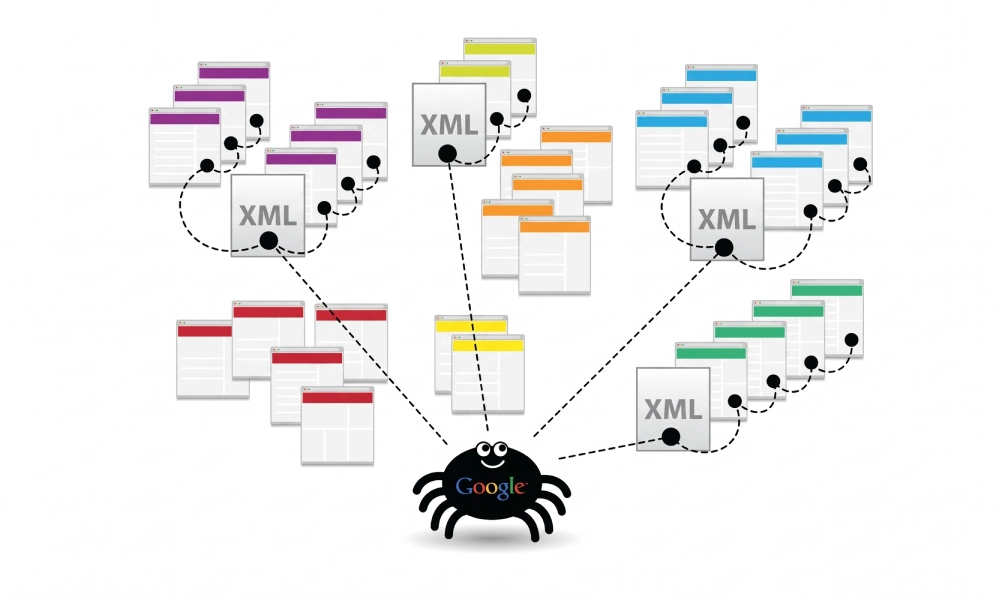
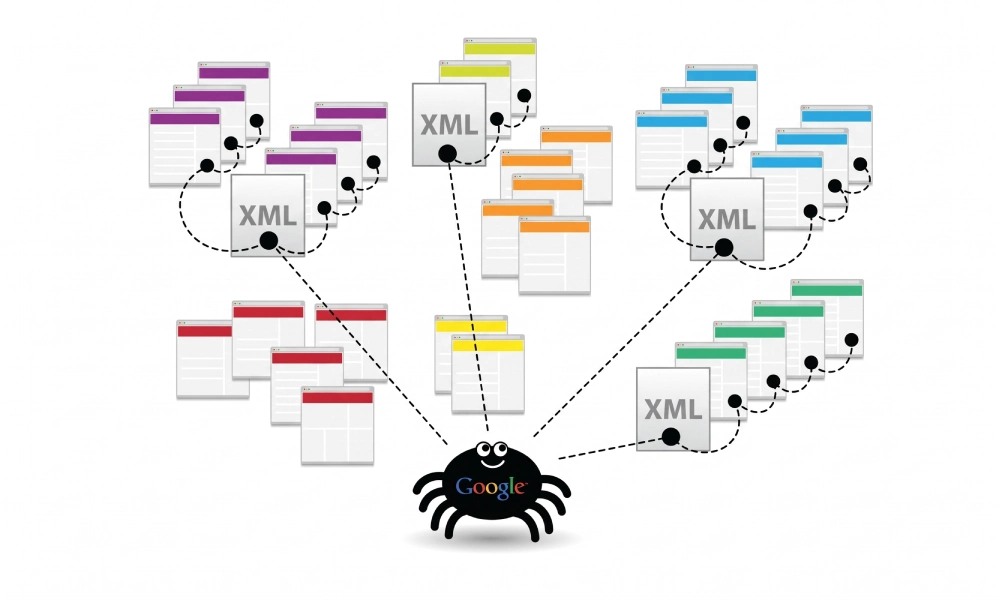
The robots.txt file is the first asset search engine bots request when arriving at a website. Part of the Robots Exclusion Protocol, this simple plain-text file directs automated crawlers on which areas of a server they can or cannot visit. While its primary role is restricting access to private folders, it also serves as an automated discovery beacon for your XML sitemaps.
While you can submit sitemaps manually to webmaster tools like Google Search Console and Bing Webmaster Tools, smaller search engines, international crawlers, and AI agents do not have dedicated webmaster submission dashboards. Adding a sitemap reference to your robots.txt file ensures every compliant crawler automatically locates your canonical URLs without manual submission. Learning how to add a sitemap to your robots.txt file guarantees comprehensive discovery across search engines.
Why Declare a Sitemap in robots.txt?
Referencing your XML sitemap within robots.txt offers several distinct operational and technical benefits:
- Universal Search Engine Discovery: While Google and Bing offer dedicated consoles, alternative search engines like DuckDuckGo, Yahoo, Yandex, and Baidu rely directly on
robots.txtto find XML sitemaps upon their initial crawl. - Automated Sitemap Recovery: If a sitemap URL path changes during a site redesign or CMS upgrade, updating the directive in
robots.txtimmediately signals the new file destination to all crawlers. - Redundancy Against Fetch Latencies: Direct console submissions can occasionally experience temporary API lag or verification delays. Having the file declared in
robots.txtprovides an uninterrupted, direct discovery pathway. - Crawl Budget Preservation: By discovering the sitemap immediately at the root, crawlers prioritize high-value canonical pages instead of randomly following legacy navigational links.
The Official robots.txt Sitemap Directive Syntax
The syntax for declaring a sitemap in robots.txt is straightforward, but it must adhere strictly to established protocol standards:
Sitemap: https://www.yourdomain.com/sitemap.xmlCritical syntax requirements to follow:
- Use the "Sitemap" Keyword: The directive begins with the word
Sitemap:(with an uppercase "S" recommended by standard conventions, followed immediately by a colon and a single space). - Always Use Absolute URLs: Never use a relative path like
Sitemap: /sitemap.xml. Crawlers require the full URL, including the protocol (https://), domain name, and full path. - Match Protocols and Hostnames Exactly: If your website enforces HTTPS and uses the
wwwprefix, your sitemap directive must reflect HTTPS andwww. Avoid linking to an HTTP address that forces a redirect. - Independent of User-Agent Blocks: Unlike
DisallowandAllowdirectives, theSitemap:directive is global. It applies to all search engines simultaneously and does not need to sit beneath a specificUser-agentblock. Placing it at the bottom of the file is standard best practice.
Step 1: Locate and Verify Your Live Sitemap URL
Before editing your server configuration, make sure your sitemap exists and is publicly accessible:
- Open a web browser in an incognito window.
- Navigate to your anticipated sitemap location (e.g.,
https://www.yourdomain.com/sitemap.xmlorhttps://www.yourdomain.com/sitemap_index.xml). - Confirm that the browser returns an HTTP 200 OK status code and displays a valid XML tree with canonical URLs.
- Copy the exact URL from the browser address bar.
Step 2: Access Your robots.txt File
Depending on your hosting environment or CMS platform, locate your robots.txt file using one of the following methods:
Method A: FTP / SFTP or Hosting File Manager
- Connect to your server using an FTP client (like FileZilla) or log into your web host control panel (cPanel, Plesk, or Cloudways).
- Navigate to your primary web root directory (typically
/public_html/,/www/, or/htdocs/). - Locate the file named
robots.txt. If the file does not exist, create a new plain-text file namedrobots.txtin that directory.
Method B: WordPress SEO Plugins
If you use WordPress with an SEO plugin, you can edit the virtual robots.txt file directly in your dashboard without touching server files:
- Yoast SEO: Navigate to Yoast SEO > Tools > File editor. Locate the robots.txt editing area.
- Rank Math: Go to Rank Math > General Settings > Edit robots.txt.
Step 3: Add the Sitemap Directive to the File
Open the robots.txt file in a text editor. Scroll to the very bottom of the file and paste your sitemap declaration.
Example 1: Single Sitemap Implementation
User-agent: *
Disallow: /admin/
Disallow: /cart/
Disallow: /checkout/

Sitemap: https://www.yourdomain.com/sitemap.xml
Example 2: Master Sitemap Index File
If your website uses a sitemap index file that organizes multiple child sitemaps (common on WordPress, Shopify, and large platforms), declare only the parent index file. Crawlers will open the index and follow all child files automatically:
User-agent: *
Disallow: /wp-admin/
Allow: /wp-admin/admin-ajax.php

Sitemap: https://www.yourdomain.com/sitemap_index.xml
Example 3: Multiple Independent Sitemaps
If you maintain separate sitemaps that are not connected by a parent index file (such as dedicated files for posts, images, and videos), declare each sitemap on its own separate line:
User-agent: *
Disallow: /private/

Sitemap: https://www.yourdomain.com/pages-sitemap.xml
Sitemap: https://www.yourdomain.com/blog-sitemap.xml
Sitemap: https://www.yourdomain.com/image-sitemap.xml
Sitemap: https://www.yourdomain.com/video-sitemap.xml
Step 4: Save and Upload the Updated File
- Save your changes in your text editor, ensuring the file is saved using UTF-8 encoding and plain text (never rich text or Word formatting).
- Upload the file back to your web root directory (
/public_html/) via FTP, overwriting the existing file. - Verify the upload by opening a browser and visiting
https://www.yourdomain.com/robots.txt. Confirm that the sitemap directive appears at the bottom of the page.
Step 5: Test and Validate the Implementation
After deploying your updated robots.txt, verify that search engines can read the file without syntax conflicts:
- Use Google Search Console Robots Testing:
Log into Google Search Console and navigate to Settings > Robots.txt. Confirm that Googlebot successfully fetched the latest version and shows no syntax warnings or parsing errors.
- Check HTTP Response Headers:
Run a curl command in your terminal to ensure the file returns an HTTP 200 OK header:
curl -I https://www.yourdomain.com/robots.txt - Ensure the Sitemap Path Is Not Disallowed:
Double-check that you have not accidentally blocked the folder hosting your sitemaps. For instance, having
Disallow: /sitemaps/while hostinghttps://www.yourdomain.com/sitemaps/sitemap.xmlprevents search bots from reading the file.
Common Mistakes to Avoid
To ensure your sitemap declaration functions as intended, avoid these common implementation pitfalls:
| Common Mistake | Incorrect Example | Correct Implementation |
|---|---|---|
| Using Relative Paths | Sitemap: /sitemap.xml |
Sitemap: https://www.yourdomain.com/sitemap.xml |
| Wrong Protocol | Sitemap: http://www.domain.com/sitemap.xml |
Sitemap: https://www.domain.com/sitemap.xml |
| Disallowing the Sitemap Folder | Disallow: /sitemap.xml |
Remove disallow rule; sitemaps must remain open |
| Listing Every Child Sitemap Unnecessarily | Listing 50 child files when an index exists | List only the master sitemap_index.xml URL |
| HTML Error Page as Sitemap | Pointing to a 404 URL that loads an HTML template | Verify URL returns raw XML with HTTP 200 OK |
Maintain Automated Discovery Across Search Engines
Adding your sitemap URL to robots.txt takes only minutes, but it provides a permanent, reliable roadmap for search crawlers. By ensuring the directive uses an absolute HTTPS URL, placing it cleanly at the end of the document, keeping media directories unblocked, and testing the file with webmaster diagnostic tools, you guarantee that search engines can discover, evaluate, and index your canonical content efficiently.
Looking for Measurable Business Growth?
Partner with BrandStory for end-to-end digital & creative excellence.


Are You Looking for Growth?
Free instant digital marketing audit and improve performance.
Get Graded Today
Transform Your Digital Growth with BrandStory
From SEO, PPC, social media marketing, and content marketing to website development, branding, and lead generation, BrandStory delivers result-driven digital marketing services in Dubai and across the UAE, helping businesses attract, engage, and convert more customers.
Trusted by 1000+ leading brands in Dubai and globally including:




Related Blogs

How to Create a Sitemap for Wix, Webflow, or Custom Websites
Search engines crawl billions of pages daily by traversing hyperlinks across the web. However, if your website relies ...
How to Create a Sitemap for Shopify: Setup and Submission Guide
For e-commerce merchants running stores on Shopify, search engine visibility is directly tied to store revenue. If sea...

How to Create a Sitemap for WordPress: Step-by-Step Guide
An XML sitemap is a critical technical blueprint for any WordPress website. It serves as a direct, structured director...
.webp)
How to Find and Fix Broken Links That Hurt Your Sitemap
An XML sitemap is supposed to represent the definitive inventory of your highest-value, fully functioning web pages. W...
.webp)
Crawl Budget: How Sitemaps Help Search Engines Crawl Your Site
Every website operates under computing and bandwidth constraints, and search engines like Google and Bing are no excep...
Why Google Is Not Indexing Your Pages (and How a Sitemap Helps)
Publishing high-quality content or launching an e-commerce catalog does not guarantee automatic inclusion in Google se...

