-
- Digital Marketing
-
 Perf. Marketing
 E-mail Marketing
 PPC Services
 Video Marketing
 Influencer Marketing
- Social Media
 Facebook Marketing
 Instagram Marketing
 Twitter Marketing
 Pinterest Marketing
 TikTok Marketing


-
- Digital Marketing
-
Perf. Marketing
- E-mail Marketing
- PPC Services
- Video Marketing
- Influencer Marketing
- Social Media
- Facebook Marketing
- Instagram Marketing
- Twitter Marketing
- Pinterest Marketing
- TikTok Marketing
Blog
How to Claim an Existing Google Business Profile: The Ownership Guide
Want a Quick Summary?
Summarize this article instantly with ChatGPT.
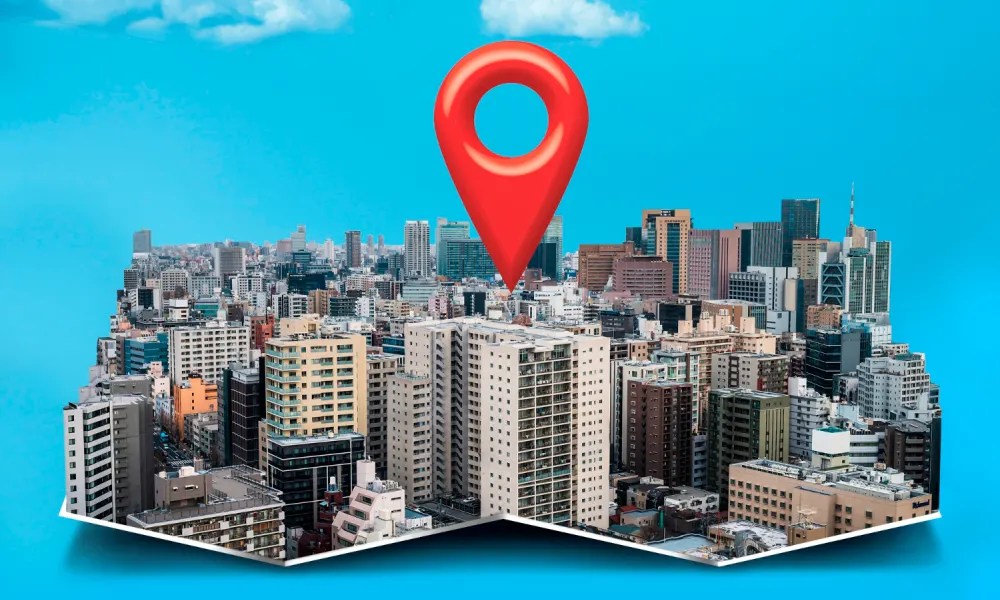
In local search engine optimization, finding that an existing Google Business Profile (GBP) already represents your business on Google Maps is common. Search engines automatically generate unmanaged listings by crawling business registries, user check-ins, third-party phone directories, and utility records. Alternatively, a former employee, past digital agency, or previous property tenant may have verified the profile years earlier and retained administrative control.
Leaving an existing listing unmanaged creates severe operational liabilities: contact details remain outdated, customer reviews go unanswered, and competitors can suggest public edits that alter your primary category or operating hours. Learning how to claim an existing google business profile safely requires distinguishing between an unverified public listing and an already-claimed listing locked under an unknown email address. Following this structured technical workflow ensures you secure verified ownership while preserving all accumulated reviews, photos, and historical local ranking authority.
The 2 Scenarios: Unclaimed vs. Already Verified Listings
Before initiating your claim, search for your business name and address on Google Maps to determine which administrative status your profile currently holds:
| Profile Status | Visual Indicator on Google Maps | Underlying Operational State | Required Claim Pathway |
|---|---|---|---|
| Scenario 1: Unclaimed / Unverified | Displays a clickable prompt: "Own this business?" or "Claim this business". | The listing exists in Google Maps as an auto-generated entity; no user account holds verified management rights. | Direct instant claiming and verification through phone, email, text, or video. |
| Scenario 2: Already Claimed / Verified | Displays a modal stating: "This profile has already been claimed by [partially obscured email]". | Another Google account (former employee, agency, or third party) holds active Primary Ownership. | Official 3-day Ownership Access Request workflow, followed by an ownership transfer or appeal. |
Scenario 1: How to Claim an Unclaimed Listing (Direct Claim)
If your profile displays the "Own this business?" button, no outside party currently manages the listing. Execute this step-by-step claiming process:
- Access the Listing via Google Maps:
Sign in to your primary corporate Google Workspace account (avoid using personal, unmonitored Gmail accounts). Open Google Maps, search for your exact business name and physical address, and click on your knowledge card.
- Initiate the Claim:
Scroll down the business information panel and click Claim this business (or Own this business?).
- Confirm Core Identity Data:
Google will prompt you to confirm the legal business name and primary category. Ensure the business name matches your legal registration documents character-for-character without adding promotional keywords or geographic modifiers.
- Select Your Verification Method:
Depending on your industry risk category and the consistency of your web data, Google will present one or more verification options:
- Automated Phone / SMS: A direct automated call or text message providing a 6-digit verification code to the registered commercial landline or mobile number.
- Domain Email: A verification link dispatched to an official company email address matching your website domain (e.g.,
info@branddomain.com). - Live or Recorded Video Verification: A continuous mobile video capture showing exterior building street signs, unlocking physical doors with keys, and active workstations or trade licenses.
- Complete Verification and Lock Ownership:
Enter the verification code or complete the required video capture. Once validated, your account transitions to verified Owner status, unlocking complete editing capabilities within the merchant panel.
Scenario 2: How to Claim a Profile Already Verified by Someone Else
If another individual or agency previously verified your listing, Google will block you from creating a secondary profile to prevent duplicate violations. You must request an ownership transfer through Google's automated access workflow:
Step 1: Initiate the Access Request
Navigate to google.com/business and click Manage now. Type your exact business name into the search bar and select your listing from the auto-suggest dropdown.
Step 2: Review the Existing Ownership Notice
Google will display a screen stating: "This profile has already been claimed by an account with the email address: [e.g., ad***@gmail.com]". Inspect the obscured email hint:
- If you recognize the email as an old corporate inbox, former staff member, or past marketing provider, contact them directly internally to request a direct user role transfer.
- If the email is unknown, abandoned, or belongs to an unresponsive third party, click the blue Request Access button.
Step 3: Submit the Access Request Form
Complete the required intake fields:
- Access Level Requested: Select Ownership (do not select Management, as you need full governance rights).
- Relationship to Business: Select Owner (or Employee / Authorized Representative).
- Contact Information: Provide your full legal name and direct business telephone number.
- Click Submit.
Step 4: The Mandatory 3-Day Waiting Window
Upon submission, Google automatically dispatches an urgent email alert to the current primary owner. The message informs them that an authorized representative has requested ownership and grants them 3 full business days to respond by approving or denying the request.
Navigating the 3 Potential Resolution Paths
After the 3-day window passes, one of three scenarios will occur:
| Response Outcome | System Action | Your Immediate Operational Next Step |
|---|---|---|
| Path A: The Current Owner Approves | You receive an automated email notification confirming access approval. | Log in to Google Business Profile. You are now an active Owner. Wait for the mandatory 7-day security hold to elapse, then promote your corporate account to Primary Owner and remove the previous owner. |
| Path B: The Current Owner Denies | You receive an automated email stating your access request was rejected. | Open the denial email and click Appeal. You will be redirected to an official appeal form where you must upload legal evidence proving physical ownership (trade license, commercial lease, utility bills, and storefront signage photos). |
| Path C: The Current Owner Ignores (No Response for 3 Days) | The 3-day clock expires with zero administrative action from the current holder. | Open your original confirmation email and click Check status (or sign back into the GBP dashboard). Google will display a button allowing you to claim and verify the profile directly via phone, email, or video verification. |
The 4 Costliest Mistakes When Claiming an Existing Profile
Business owners frequently damage their local search footprint by committing basic procedural errors during the claiming phase:
- Creating a Brand-New Profile to Bypass the Old One:
When discovering an existing listing locked under an unknown email, many owners simply create a second, separate listing for the same address. This creates an immediate duplicate listing policy violation. Google will split your map pack presence, filter one or both listings from the Local 3-Pack, and leave you unable to access the reviews accumulated on the original profile.
- Requesting "Manager" Instead of "Owner" Access:
Selecting Manager access in the request form leaves the unknown third party as Primary Owner. If you ever need to transfer the business, update core banking integrations, or delete unauthorized managers, you will be blocked. Always request Ownership.
- Claiming with a Personal, Disposable Email Account:
Using a personal Gmail inbox (such as
john.marketing1988@gmail.com) to claim an enterprise profile. If that employee leaves or the password is lost, recovering access is difficult. Always use an authenticated Google Workspace corporate account on your primary business domain. - Attempting Major Profile Edits on Day One:
Changing the business name, primary category, street address, and phone number simultaneously within 24 hours of gaining ownership. Google's automated fraud algorithms view rapid core data changes on newly reclaimed profiles as potential account takeovers, often triggering an instant hard suspension. Let ownership settle for 10 to 14 days before making major structural edits.
Post-Claim Operational Health and Security Checklist
Once you successfully secure verified ownership, execute this immediate operational cleanup:
| Audit Vector | Immediate Security Action | Target Operational State |
|---|---|---|
| User Access Audit | Navigate to Business Profile settings > People and access. | Identify and immediately remove all unknown, former agency, or departed employee accounts. |
| Primary Ownership Lock | Wait for the 7-day security hold to clear, then promote your master corporate account. | Listing Primary Ownership held strictly by a permanent corporate Google Workspace account. |
| Core NAP Audit | Review the registered legal business name, physical street address, and primary phone number. | Exact character-for-character alignment with physical exterior signage and government trade licenses. |
| Hours & Website Symmetry | Verify that weekly operating hours and destination website URLs are current. | Accurate operational hours and deep-linked, UTM-tagged website URLs confirmed. |
| Unanswered Review Backlog | Review historical customer reviews that were neglected by past management. | Professional, composed owner responses published across all historical 1-star and 5-star reviews. |
Securing Your Local Digital Asset
Claiming an existing Google Business Profile is a foundational step in establishing local search dominance. By auditing whether the listing is unclaimed or verified by a third party, utilizing Google's official 3-day access request framework, and providing verified documentation in the event of an appeal, you regain control over your digital storefront. Establishing clean, centralized corporate ownership protects your business reputation, preserves your accumulated customer review equity, and ensures maximum visibility across Google Maps and the Google Local 3-Pack.
Looking for Measurable Business Growth?
Partner with BrandStory for end-to-end digital & creative excellence.

Are You Looking for Growth?
Free instant digital marketing audit and improve performance.
Get Graded Today
Transform Your Digital Growth with BrandStory
From SEO, PPC, social media marketing, and content marketing to website development, branding, and lead generation, BrandStory delivers result-driven digital marketing services in Dubai and across the UAE, helping businesses attract, engage, and convert more customers.
Trusted by 1000+ leading brands in Dubai and globally including:




Related Blogs

How to Optimise an Existing Page for SEO: On-Page Framework
Optimising an existing web page for search engines is one of the highest-yield initiatives in digital marketing. Unlike ...

How to Show Experience and Expertise on UAE Business Websites: E-E-A-T Architecture
In the digital economy of the United Arab Emirates, establishing demonstrable professional authority is a direct comme...

How to Refresh Old Blog Posts for Rankings: Content Revamp Guide
Content decay is an inevitable reality in organic search. Even articles that once commanded top three positions on Googl...

Arabic and English Page Layout for SEO: The Architecture Guide
Designing and developing a bilingual website that serves both Arabic and English audiences involves far more than simply...

Arabic Heading and Keyword Placement: On-Page SEO Architecture
Structuring on-page content for Arabic-language search engine optimization demands far more than translating high-perf...

Translated Vs. Original Arabic Content for SEO: Technical Analysis
Global brands and multinational enterprises expanding into the Middle East and North Africa (MENA) face a fundamental co...